
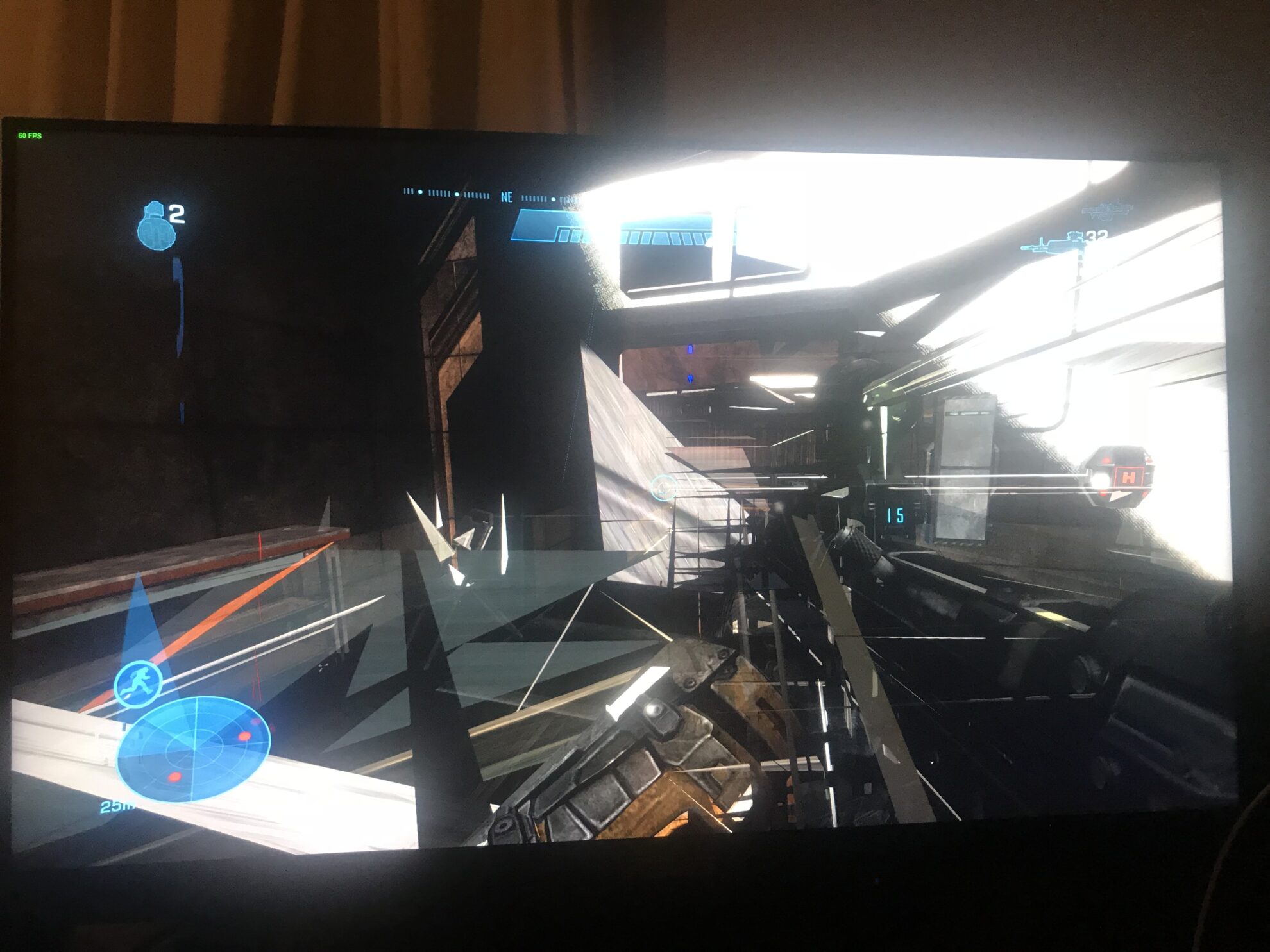
Source spearblade.com
GPU artifacting examples are common visual glitches that occur on the screen of our electronic devices, often caused by a malfunctioning or damaged graphics processing unit (GPU). These anomalies include distorted images, screen flickering, freezing, black screens, and more.
Why is it essential to discuss GPU artifacting examples? Knowing these symptoms can help diagnose the problem and make necessary repairs or replacements. This is particularly helpful for gamers, graphic designers, and video editors who rely heavily on their GPU's performance. A malfunctioning GPU can lead to unexpected data loss or damage, costing both time and money.
It is also essential to understand that GPU artifacting may occur for a variety of reasons, including overheating, dust, voltage regulation issues, and even factory defects. By recognizing these examples, we become aware of patterns that help us determine the underlying cause of the problem.
Therefore, learning about GPU artifacting examples can help prevent future problems and improve the longevity of our electronic devices. Keep your eyes peeled for these symptoms, and don't hesitate to take action if you notice any.
What is GPU artifacting?
GPU artifacting is a term used to describe visual abnormalities in the display output of a Graphics Processing Unit (GPU). These abnormalities can manifest in several forms, including distorted textures, flickering images, color banding, and random pixels or dots appearing on the screen. In most cases, GPU artifacting is caused by a malfunctioning or damaged graphics card, overheating, or due to outdated drivers.
Symptoms of GPU Artifacting
The following are some common symptoms of GPU artifacting:
| GPU Artifacting Symptoms | Description |
|---|---|
| Screen flickering | This is characterized by the display frequently blinking or flashing, mostly in games or graphics-intensive applications. |
| Artifacts in graphics or textures | Sometimes, textured graphics like 3D models or objects can display incomplete or corrupted regions, creating pixelated images on the screen. |
| Color artifacts | The GPU may display color lines, or random pixels of asynchronous colors can appear on the screen making the color transitions look distorted or non-uniform. |
| Crashing and instability | The graphics card can become unstable and freeze frequently, resulting in crashes or system reboots. |
Causes of GPU Artifacting
The various causes of GPU artifacting include:
- Overheating: Graphics cards can get overheated due to prolonged use or inadequate cooling systems. This can result in the malfunctioning of some of the components, leading to visual anomalies.
- Damaged or malfunctional components: All kinds of computer hardware can malfunction due to regular wear and tear. Components that contribute to graphical output like VRAM, GPU, or the power supply unit can be vulnerable to such malfunctions.
- Outdated Drivers: Outdated drivers can result in conflicts between the operating system and the graphics card, leading to visual anomalies.
- Unsupported configurations: Incompatible hardware or drivers with a specific operating system configuration can also lead to unexpected graphics behavior.
While GPU artifacting can be encountered in time, it is advisable to have proper maintenance checks at regular intervals and appropriate cooling for the machine to perform optimally. With regular servicing and GPU monitoring tools, the risk of encountering GPU artifacting can be significantly reduced.
If you're interested in learning more about GPUs and their functioning, head over to Wikipedia for a comprehensive look.
Common Types of GPU Artifacting
GPU artifacting occurs when a graphics processing unit (GPU) displays visual anomalies caused by a variety of factors such as high graphics workload, overclocking, overheating, or outdated drivers. Here are some common types of GPU artifacting:
1. Screen Tearing
Screen tearing is a common type of GPU artifacting that occurs when the graphics card starts rendering a new frame before it finishes displaying the previous frame. This results in an overlapping of two frames and causes horizontal lines or screen tearing to appear on the display. Screen tearing can be resolved by enabling vertical synchronization (Vsync) or by using adaptive sync technologies like AMD FreeSync or NVIDIA G-Sync.
2. Texture Artifacts
Texture artifacts appear when the GPU fails to load a texture correctly, resulting in graphical glitches such as missing textures, blurred or stretched textures, or objects appearing to be made of the wrong material. Texture artifacts can be caused by outdated or corrupted graphics card drivers, insufficient graphics card memory, or overheating. To resolve this issue, it is recommended to update or reinstall the graphics card drivers and ensure that the graphics card is adequately cooled.
Below are specific examples of texture artifacts:
| Artifact | Description | Solution |
|---|---|---|
| Aliasing | Jagged edges on objects and textures | Enable anti-aliasing in graphics settings |
| Mipmap Artifacting | Objects or textures appear blurred or pixelated when viewed from a distance | Adjust mipmap settings in graphics settings |
| Z-Fighting | Objects appear to flicker or overlap due to overlapping geometry | Adjust graphics settings to prevent overlapping geometry |
3. Pixelation or Artifacts
Pixelation or artifacts occur when the GPU fails to generate pixels correctly, producing visual anomalies such as black dots, white dots, or random colored pixels on the display. These artifacts can be caused by overclocking the graphics card beyond its capabilities, outdated drivers, or overheating. To resolve this issue, it is recommended to lower the GPU clock speeds and ensure that the system is adequately cooled.
4. Distorted Graphics
Distorted graphics occur when the GPU fails to generate correct pixel coordinates, causing the display to show distorted or warped visuals. This can be caused by an outdated driver, a faulty GPU, or overheating. To resolve this issue, it is recommended to update or reinstall the graphics card drivers and ensure that the graphics card is adequately cooled.
By knowing the different types of GPU artifacting, users can easily diagnose and address the issue, whether it be through hardware or software solutions.
Sources:
1. Wikipedia
Distorted or Missing Graphics
GPU artifacting occurs when there is a problem with a graphics card, causing the system to create visual artifacts or glitches. The most common type of artifacting involves distorted or missing graphics.
These distortions can take many forms, but some of the most common include:
| Artifacts | Description |
| Screen tearing | This occurs when the image on the screen appears to be split into two or more sections, with parts of the image appearing in the wrong place. |
| Texture flickering | This occurs when there is a problem with the way textures are loaded and displayed on the screen, causing them to flicker or change rapidly. |
| Polygonal artifacts | These are glitches in the geometry, where the shapes of objects appear stretched or distorted in strange ways. |
| Missing graphics | This occurs when parts of the image fail to load or render correctly, leaving parts of the scene blank or black. |
When you encounter any of these visual glitches, it is a sign that there is a problem with your GPU, and you should take action before the problem gets worse.
There are several possible causes of distorted or missing graphics, including:
- Overheating - When a graphics card overheats, it can cause visual artifacts to appear on the screen. This is because the GPU is not able to process the incoming information efficiently, causing data to be corrupted or lost.
- Bad drivers - If the graphics card drivers are outdated or corrupted, it can cause problems with the way the card handles graphics. These problems can manifest as visual artifacts on the screen.
- Hardware failure - If there is a problem with the graphics card hardware, such as a damaged circuit or faulty component, it can cause visual glitches to appear.
If you are experiencing distorted or missing graphics on your computer, the first step you should take is to update your graphics card drivers. This might fix the problem if it is caused by outdated software.
If updating your drivers doesn't work, you should check your GPU temperature to make sure it is not overheating. If it is, you should try cleaning the dust out of your computer's case and fans to improve airflow and cooling.
If neither of these steps solves the problem, there may be a hardware problem with your GPU, and you may need to replace it.
If you continue to use a graphics card that is artifacting, it can cause further damage to your system and may eventually lead to permanent failure of the GPU.
Therefore, it is recommended to take immediate action when you notice any of these visual glitches.
Artifacting is a common problem that can occur with any graphics card, but it is usually easy to fix with a few simple steps. If you are unsure how to proceed, consult a professional technician or seek advice from a reputable online source such as Wikipedia.
LSI Keywords:
- GPU artifacting causes
- GPU overheating and artifacting
- Graphics card drivers and artifacting
- Hardware failure and GPU artifacting
- How to fix GPU artifacting
External link: https://en.wikipedia.org/wiki/Screen_tearing
GPU Artifacting Examples: Flickering or Stuttering Display
One of the most common types of GPU artifacting is a flickering or stuttering display. This occurs when the video output on your screen appears to be skipping, lagging, or flashing. This can be caused by several different factors, such as outdated drivers, overheating, or faulty hardware. Below are some specific examples of flickering or stuttering display that you may encounter when experiencing GPU artifacting:
1. Screen Tearing
Screen tearing is a type of display artifact in which the top and bottom halves of the screen seem to be out of sync. This can result in a visible horizontal line on the screen where the pixels do not match up correctly. Screen tearing often occurs when playing video games with high frame rates, but can also be caused by other factors such as outdated drivers or a faulty graphics card.
2. Ghosting
Ghosting appears as if there are faint duplicated images on your display. This can result in a blurry or smudged appearance on the screen, and can make text or images difficult to read. One of the most common causes of ghosting is a slow response time in your monitor. This can be mitigated with a higher refresh rate monitor, but it can also be caused by a faulty graphics card.
3. Flickering Pixels
Flickering pixels appear when individual pixels on your screen turn on or off at a rapid rate. This can cause the image to appear as if it is shaking or vibrating, and can make it difficult to read any text or images on the screen. Flickering pixels could be caused by a loose or damaged monitor cable, incompatible graphics card drivers, or a faulty graphics card.
4. Stuttering Display
A stuttering display occurs when you see intermittent freezing or stuttering in the video output. This can make it difficult to watch videos, play video games, or use any software requiring graphics rendering. Stuttering display is often caused by outdated drivers, overheating, or a lack of available resources. When your computer's resources are being used up by other processes, your graphics card may not have enough power to keep up with high-end games or other graphics-intensive applications, resulting in stuttering.
Table below summarizes the different types of flickering or stuttering artifacts associated with GPU artifacting:
| Display Artifact | Cause |
|---|---|
| Screen Tearing | Outdated drivers, overheating, or faulty hardware |
| Ghosting | Slow response time in your monitor or faulty graphics card |
| Flickering Pixels | Loose or damaged monitor cable, incompatible graphics card drivers, or faulty graphics card |
| Stuttering Display | Outdated drivers, overheating, or a lack of available resources |
If you're experiencing flickering or stuttering display on your computer, it's important to diagnose the issue as soon as possible. Flickering or stuttering could be caused by a variety of factors, such as outdated drivers, overheating, or faulty graphics hardware, and should be addressed before permanent damage occurs. Additionally, if you suspect your graphics card is faulty, it may be necessary to replace it entirely to resolve the issue.
For more information about GPU artifacting, visit the Wikipedia article on graphics artifacting.
GPU artifacting can be caused by a variety of factors including average GPU temperature and acceptable GPU temperature. To learn more about how to identify and fix artifacting on your GPU, check out our GPU artifacting examples article.
GPU Artifacting Examples
Overheating and its Effects on GPU
Overheating is a major issue that can affect the functioning and longevity of a GPU. When a GPU overheats, it can cause a range of issues including artifacting, graphical glitches, and even complete system crashes. In this article, we will focus on GPU artifacting caused by overheating and provide examples of different types of Artifacting.
1. What is artifacting?
Artifacting is a term used to describe visual anomalies that appear on screen when running a GPU-intensive application. These anomalies can take many forms, including flickering, strange color patterns, and distortion of images. When a GPU becomes unstable due to overheating, it can create these visual artifacts, making it difficult to use the computer or play games.
2. The effects of overheating on GPU
Overheating can cause significant damage to a GPU if it is not addressed quickly. The following are some of the effects of overheating on a GPU:
| Effect | Description |
|---|---|
| Artifacting | Visual anomalies that appear on screen when running a GPU-intensive application. |
| Graphical glitches | Distortion of images or textures in games or other graphics-heavy applications. |
| System crashes | The computer may freeze or shut down unexpectedly. |
| Reduced lifespan | Overheating can cause long-term damage to the GPU, reducing its lifespan. |
| Performance issues | The GPU may struggle to perform as it should under normal conditions, affecting overall system performance. |
3. Examples of artifacting caused by overheating
Artifacting can take many different forms, depending on the severity of the overheating. The following are some examples of artifacting caused by overheating:
| Artifacting Type | Description |
|---|---|
| Screen flickering | Intermittent flickering of the entire screen or parts of it. |
| Color distortion | Strange or incorrect colors appearing on screen, making it difficult to distinguish details. |
| Tearing | Horizontal lines appearing on the screen or tearing of images or text. |
| Pixelation | Distortion of images or textures to the point where pixels become visible. |
| Freezing or stuttering | Frozen or stuttering images or videos, making it difficult to perform any tasks. |
4. How to prevent overheating
Preventing overheating is essential to avoid damage to your GPU and ensure a long lifespan. Here are some tips to prevent your GPU from overheating:
- Clean your GPU and the inside of your computer regularly to remove dust and dirt that can limit airflow.
- Use high-quality thermal paste to improve heat transfer between the GPU and the heatsink.
- Make sure your computer is placed in a well-ventilated area to allow for proper airflow.
- Upgrade your computer's cooling system, such as adding more fans or liquid cooling.
- Limit your GPU's usage if you notice it gets too hot frequently, or consider upgrading it to a newer, more efficient model.
5. Conclusion
Overheating can cause a range of issues with your GPU, including artifacting, graphical glitches, system crashes, and reduced lifespan. By taking steps to prevent overheating, you can ensure that your GPU performs optimally and lasts as long as possible.
Understanding the different types of artifacting caused by overheating can help you identify when your GPU is starting to fail and take action early to avoid further damage. If you notice any unusual visual anomalies on your screen, it's essential to determine the cause and take steps to resolve the issue quickly.
For more information on GPU artifacting and overheating, visit https://en.wikipedia.org/wiki/Artifacting/
GPU Artifacting Examples: What Causes Them?
GPU artifacting happens when your computer's graphics processing unit begins to malfunction. This malfunction results in distorted images and videos being displayed on your screen. Here are some of the most common causes of GPU artifacting:
| Causes | Description |
|---|---|
| Overheating | If your GPU gets too hot, it can cause the components to warp and malfunction, leading to artifacting. |
| Overclocking | If you have overclocked your GPU, it can cause excess stress on the components, leading to artifacting. |
| Driver Issues | If the drivers for your GPU aren't functioning correctly, it can cause artifacting. |
| Faulty Hardware | If your GPU has been damaged or has a manufacturing defect, it can result in artifacting. |
How to Fix GPU Artifacting Issues?
1. Check the temperature of your GPU
One of the most common causes of GPU artifacting is overheating. This can be caused by various reasons. It could be due to dirty fans, excess dust in the computer, or inadequate cooling systems. If temperatures appear high, you can purchase a cooling system or reposition your computer. Make sure airflow is not obstructed and that fans are operational.
Additionally, cleaning the components can also improve airflow and lower temperatures.
Make a schedule for cleaning your computer with dust removers to ensure that there are no build-ups of dust.
2. Undervolting and Underclocking:
If your GPU overheats frequently, or if reviewing temperatures shows your GPU running higher than desired, opting for underclocking and undervolting can be an effective solution. This means reducing the power being supplied to your GPU and the frequency of the GPU. That way, your GPU will become less power-intensive and run cooler.
This implies that your GPU will not work as fast as before, but it will run adequately to avoid any artifacting problems. Plus, the energy consumption will decrease, providing benefits in the long run.
3. Overclocking and Custom Fan Profiles
Overclocking can lead to GPU artifacting problems, but it is possible to mitigate these issues with custom fan profiles. Custom fan profiles allow for fan speeds to be adjusted based on your GPU's temperature. So, if you increase the fan speed, you will lower the GPU's temperature, reducing the risk of artifacting.
4. Replace or Repair Faulty Hardware
If your GPU has an inherent defect or has been damaged, it might be best to replace it. A damaged GPU can often create severe problems beyond artifacting. For instance, it could cause your computer to freeze or shut off unexpectedly.
If your GPU is still within the warranty period, you might qualify for a free repair or replacement. Before replacing or repairing your GPU, ensure that you keep all documentation safe since it will be helpful when submitting warranty requests, returns, and exchanges.
5. Update Graphics Drivers
Using outdated or corrupted graphics drivers can cause artifacting issues. GPU manufacturing companies release updates for these drivers to fix known issues. Updating GPU drivers can solve existing artifacting issues, eliminate game crashes and other erratic graphics errors.
You can visit the official website of your GPU manufacturer or use a software updater to check and install the latest graphical card drivers available.
6. Reinstalling GPU Drivers
Sometimes GPU drivers may become faulty or get corrupted, resulting in poor image or artifacting. If updating GPU drivers doesn't fix the issue, try uninstalling all existing GPU drivers and installing new ones. In this way, you can eliminate the root problem and clear the registry of your previous drivers, resolving any issues they caused.
Additionally, before removing existing drivers, take backups of drivers, so that you can always restore them if necessary.
Overall, these solutions can assist you in fixing GPU artifacting concerns and improve the life of your GPU. Give them a try before considering buying a replacement or sending your computer to a professional.
For more in-depth knowledge of GPU artifacting, its causes, and solutions, visit Wikipedia for a comprehensive guide.
GPU Artifacting Examples
GPU artifacting refers to visible glitches or unusual display patterns that occur on a computer's screen. In most cases, artifacting occurs as a result of hardware problems, with the graphics processing unit (GPU) being a major culprit. Artifacts can appear in the form of colored pixels, flickering screens, diagonal lines, and distorted images, among others.
GPU artifacting can be caused by several factors such as overheating, dust accumulation, power supply problems, outdated drivers, overlocking, and damaged hardware components. Below are some examples of GPU artifacting:
| Artifacting Type | Description |
|---|---|
| Screen flickering | Repeated screen flashes or inconsistent display |
| Colored pixels | Pixelated patterns or discoloration of images or videos |
| Distorted images | Objects or lines appear stretched or warped |
| Screen Tearing | Horizontal and vertical lines appearing on the screen |
GPU artifacting can be detrimental to a computer's functionality, causing crashes, freezing, and causing the system to become unstable. Luckily, most of the problems that cause GPU artifacting can be avoided or solved by regular maintenance.
Preventing GPU Artifacting with Regular Maintenance
It is important to perform routine maintenance to keep your computer in top-notch condition. To prevent GPU artifacting, follow the below steps:
1. Keep the GPU Temperature in Check
High GPU Temperature is a significant contributor to GPU artifacting. Dust and debris accumulation can block the fans or heatsinks, reducing their cooling effectiveness. Regularly cleaning your computer, especially the GPU components, will help maintain proper cooling and temperature balance. You can use monitoring software like Core Temp or GPU-Z to check your GPU temperature and fan speed status.
2. Keep the Power Supply Healthy
A failing power supply may not provide enough energy to the system, leading to GPU artifacting. Make sure your power supply has enough wattage to support your computer and components. A minimum of 500W is adequate for gaming or graphics intensive tasks. Periodically check for loose connections, corrosion, or any visible damage to the power supply component.
3. Use Up-to-date Drivers
GPU drivers constantly receive updates and bug fixes from the GPU manufacturer to improve performance and compatibility with the latest games and software versions. Ensure you update your GPU drivers regularly to keep your computer running smoothly. You can also configure automatic updates for your GPU drivers.
4. Avoid Overclocking
Overclocking can increase the GPU's operating speed beyond its default specifications, which stresses the GPU and may make it prone to failure. While overclocking can boost system performance, it is not recommended for long-term use, except in some instances where users are knowledgeable about their system's cooling, power supply, and performance limits.
5. Conduct Regular Hardware Checks
Hardware checks help detect and prevent potential issues. Conduct a visual inspection of your GPU components and check for any physical damage or loose connections. Running a diagnostic check for hardware components will give you an idea of any underlying issues. Windows has built-in system diagnostic tools, and several third-party tools are available online to check your system's components.
6. Keep Software and Applications Up-to-date
Software and Application updates contain security patches and bug fixes that help resolve compatibility issues with hardware components. Ensure that your operating system, applications, and games are up to date.
7. Avoid Blocking Air Vents and Ensure Proper Airflow
Proper airflow is crucial to maintaining a stable GPU temperature. Ensure that your computer has adequate space around it, avoid blocking air vents, and ensure proper ventilation.
Regular maintenance can help prevent GPU artifacting and enhance your system's lifetime. Following the above steps will minimize physical damage, reduce system failures, and improve your system's overall performance.
For more information on GPU artifacting, you can read the Wikipedia article on graphics artifacting
FAQ and Conclusions
Here are some frequently asked questions about GPU artifacting, along with their respective answers:
1. What causes artifacting on a GPU?
Artifacting can be caused by overheating, factory overclocking, weak or failing power supplies, and damaged or outdated graphics drivers.
2. Can artifacting damage my GPU?
Yes, prolonged artifacting can damage your GPU. It's best to address the issue as soon as possible.
3. How can I fix artifacting on my GPU?
You can try updating or reinstalling your graphics drivers, adjusting your GPU's clock settings, or swapping out your GPU for a new one if all else fails.
4. Will underclocking my GPU help prevent artifacting?
Underclocking your GPU may help prevent artifacting caused by overheating or a weak power supply. However, it may also result in reduced performance.
5. Why do some games or applications cause artifacting while others do not?
Different games and applications can stress your GPU differently, affecting its performance and potential for artifacting.
6. Can artifacting be a sign of malware or a virus?
While artifacting is typically a hardware issue, malware or a virus may cause similar graphical anomalies.
7. Should I use third-party overclocking software on my GPU?
Unless you're experienced and willing to take the risk, it's generally not recommended to use third-party overclocking software.
8. What's the difference between artifacting and screen tearing?
Artifacting is characterized by unusual graphical anomalies, while screen tearing is the result of mismatched refresh rates between your GPU and monitor.
9. Can artifacting occur on integrated graphics?
Yes, artifacting can occur on integrated graphics, though it's less common than with dedicated GPUs.
10. Is artifacting covered under warranty?
Most GPU warranties do not cover artifacting caused by user error or instability.
In conclusion, GPU artifacting can be caused by a variety of factors, but it's important to address the issue promptly to avoid potential damage to your hardware. There are various steps you can take to attempt to fix or prevent artifacting, but be cautious when making adjustments to your GPU's settings and consider seeking professional assistance if necessary. Be aware that artifacting may also be a sign of malware or a virus, so it's important to keep your system secure. Overall, while artifacting can be frustrating and potentially damaging, it's not always a cause for alarm and can usually be resolved with the appropriate action.


Post a Comment
Post a Comment