
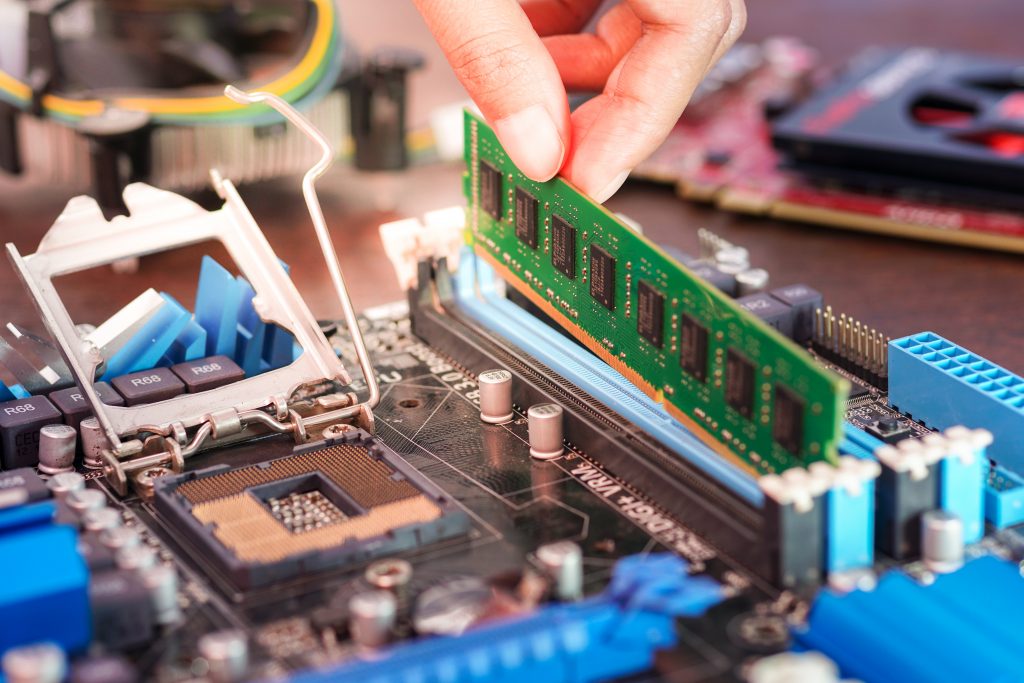
Source motherboardinfo.com
If you're looking to upgrade your computer's Random Access Memory (RAM), it's important to ensure that the new RAM is compatible with your motherboard. RAM motherboard compatibility is vital in ensuring your computer runs smoothly without any issues, and that's exactly what we're going to discuss in this article.
First of all, what is RAM motherboard compatibility? Simply put, it refers to the ability of your motherboard to support the type, speed, and capacity of the RAM you want to install. When a RAM module is incompatible with the motherboard, it may not work at all, may not reach its full capacity, or may even cause damage to your computer's hardware.
The benefits of RAM motherboard compatibility are numerous. Firstly, it ensures that your computer's performance is optimal, as the RAM is working seamlessly with the motherboard's architecture. Secondly, it can save you money and time in the long run, as you won't have to worry about returns and replacements. Lastly, it gives you peace of mind that everything is functioning correctly, and you can focus on enjoying your computer without the worry of compatibility issues.
In conclusion, RAM motherboard compatibility is essential when upgrading your computer's RAM. Ensuring they are compatible will save you time, money, and headaches, while ensuring that your computer is functioning optimally.
Understanding RAM and Motherboard Compatibility
RAM (Random Access Memory) is a type of computer hardware that stores data temporarily, allowing the processor to access it quickly when performing operations. Motherboards are the main circuit boards of computers, connecting all other components together and facilitating communication between them. RAM and motherboard compatibility is critical to ensure that a computer system runs smoothly and efficiently.
Factors Affecting RAM and Motherboard Compatibility
Several factors can affect RAM and motherboard compatibility, including the type of RAM, the speed and capacity of the RAM, and the type and number of memory slots on the motherboard. Let's take a closer look at each of these factors:
| Factors | Details |
|---|---|
| Type of RAM | There are several types of RAM, including DDR (double data rate), DDR2, DDR3, and DDR4. Each type has different pin counts, notches, and voltages, making them incompatible with different motherboard types. It's important to ensure that the motherboard and RAM have compatible types to avoid any compatibility issues. |
| RAM Speed and Capacity | RAM speed and capacity can affect compatibility, as some motherboards may not support certain speeds or capacities. It's important to check the motherboard specifications and maximum supported RAM capacity to ensure compatibility and avoid any performance issues. |
| Type and Number of Memory Slots on the Motherboard | The type and number of memory slots on the motherboard can also affect compatibility. Some motherboards may only have one type of slot, such as DDR3, while others may have both DDR3 and DDR4 slots. It's important to check the motherboard specifications and identify the type and number of compatible memory slots for the RAM to ensure compatibility. |
Tips for Ensuring Compatibility
Here are some tips for ensuring RAM and motherboard compatibility:
- Check the motherboard specifications to identify compatible RAM types, speeds, and capacities.
- Make sure the RAM and motherboard have the same number of pins and notches.
- Consider buying RAM from the same manufacturer as the motherboard, as they may have better compatibility.
- Ensure that the RAM is compatible with the motherboard's memory slots.
By following these tips, you can avoid compatibility issues and ensure that your computer system runs smoothly and efficiently.
Overall, RAM and motherboard compatibility is an important aspect of building and maintaining a computer system. Understanding the factors that affect compatibility and following best practices can help ensure that your computer performs at its best.
For more information on RAM and motherboard compatibility, check out https://en.wikipedia.org/wiki/Computer_memory.
Key Factors that Affect RAM and Motherboard Compatibility
RAM and motherboard compatibility can be very confusing for those who are entirely new to computer components. One of the first things you should know is that not all RAMs work with all motherboards. While there are some opportunities to combine them, there are also some combinations that are not possible. Here are the key factors that affect RAM and motherboard compatibility:
1. RAM Type
The type of RAM that your motherboard supports is the most significant component of RAM and motherboard compatibility. DDR RAM comes in different versions, such as DDR3 and DDR4. Most motherboards only support one kind of memory, but some advanced ones enable you to use either DDR3 or DDR4 RAM. The RAM PC4-17000 DDR4-2133 288-Pin Non-ECC UDIMM Memory Module is an example of this type of RAM.
2. RAM Speed
RAM speed is an essential factor for computer efficiency. Speed could make a significant difference in processing data, particularly for power users who are using memory-intensive tasks. It is important to choose RAM with a speed that your motherboard supports. While some motherboards can speed up or slow down, it is better to check the motherboard specification lists before making a purchase. It would help if you also were careful when choosing to overclock your RAM. Overclocking will raise the RAM speed above its recommended stats, but it might cause system instability and hardware failure.
- RAM Speed Supported by Motherboard
| Motherboard | Speed Supported |
|---|---|
| ASUS TUF B450M-PLUS GAMING | DDR4 4400(O.C.) |
| GIGABYTE GA-B560 AORUS PRO AX | DDR4 2133 |
| ASRock Z590M-ITX/ac | DDR4 3200 |
3. RAM Capacity
The RAM capacity your motherboard can accommodate is also essential. The maximum capacity may vary depending on the motherboard model. It would be best to check your motherboard specifications to ensure that your motherboard can support the RAM capacity you are purchasing. If you plan on increasing memory capacity in the future, you should consider buying the same RAM model, so it will keep working with your current RAM.
- RAM Capacity Supported by Motherboard
| Motherboard | Capacity Supported |
|---|---|
| ASUS ROG Maximus XIII HERO | 128GB |
| Gigabyte A520M S2H (rev. 1.x) | 64GB |
| MSI B450I GAMING PLUS AC | 32GB |
Ram and motherboard compatibility is crucial because choosing the wrong RAM for your motherboard can result in system instability or even damage to your hardware. In addition, buying RAM that is too high-end for your motherboard will be a waste of money because it cannot operate at full potential. Therefore, you need to consider RAM type, RAM speed, and RAM capacity when purchasing to maximize compatibility while staying within your budget.
With the above information, you can now select the RAM that will work best with your motherboard while avoiding incompatibility issues. If you are still unsure about which RAM and motherboard combination to select, consult the product documentation or contact the product support team for further assistance.
external link: https://en.wikipedia.org/wiki/DDR4
How to Identify the Type of RAM Your Motherboard Requires
Having a compatible RAM with your motherboard is essential for your computer's performance. If you want to upgrade or replace your RAM, you must first identify the type of RAM your motherboard requires. Here are three ways to do so:
1. Check your Motherboard's Manual
The easiest way to identify the type of RAM your motherboard supports is by checking the manual that came with it. The manual will provide you with valuable information and details about your motherboard, including the RAM it uses. Look for the "Specifications" or "Memory" section of the manual, which lists the types of RAM and the maximum amount of RAM your motherboard can support.
For example, if your manual indicates it supports DDR2, DDR3, and DDR4, then your motherboard supports those types of RAM. The manual will also inform you about the speed of RAM it supports, such as PC3-12800 or PC4-24000.
2. Use CPU-Z
You can use a free software called CPU-Z. It provides detailed information about your computer's hardware. Once you download and install the software, you can navigate to the "Memory" tab, which will display the RAM type, size, frequency, and timings.
If CPU-Z shows that your motherboard model number, you can use that information to find your motherboard's manual online and check for the RAM it supports.
Below is an example of how the Memory tab in CPU-Z looks like:
| Column 1 | Column 2 |
|---|---|
| Type | DDR3 |
| Size | 8 GB |
| Frequency | 800 MHz (1:6) |
| DC Mode | Symmetric |
| Timings | CAS Latency (CL) 11 clocks RAS to CAS Delay (tRCD) 11 clocks RAS Precharge (tRP) 11 clocks Cycle Time (tRAS) 28 clocks Command Rate (CR) 2T |
3. Physical Inspection of the RAM Slots
You can also identify the type of RAM your motherboard requires from the physical characteristics of the RAM slots. There are different types of RAM slots, such as DDR, DDR2, DDR3, and DDR4, which have different notches and pin configurations. Typically, DDR, DDR2, and DDR3 have 240 pins, while DDR4 has 288 pins.
If you are not sure about the type of RAM, you can always use the label on the RAM module for reference. The label includes all of the necessary information you need, including the RAM type, size, speed, and timings.
Below is an example of a DDR4 RAM label:
| Type | DDR4 |
|---|---|
| Size | 8 GB |
| Speed | 2400 MHz |
| Timings | 16-16-16-39 |
In conclusion, identifying the type of RAM your motherboard requires is crucial to ensure that your computer's performance is top-notch. You can use the manual, software, or physical inspection to identify the RAM type your motherboard supports.
External Link: https://en.wikipedia.org/wiki/RAM
For checking RAM motherboard compatibility, it's important to find the right motherboard. Check out this article for more information.
Checking for Compatibility Issues between RAM and Motherboard
When building a new computer or upgrading an existing one, it is crucial to ensure that the RAM and motherboard are compatible with each other. Failure to do so may result in poor performance, system crashes, and even hardware damage. In this article, we will explore some of the most common compatibility issues between RAM and motherboards and how to check for them.
1. RAM Type
One of the most crucial factors to check when it comes to RAM motherboard compatibility is the type of RAM. There are different types of RAM, including DDR, DDR2, DDR3, and DDR4, each with its own speed, voltage, and physical specifications.
To check whether your motherboard is compatible with your RAM, you need to ensure that the RAM type you have matches the type that your motherboard supports. This information is usually available in the motherboard manual or on the manufacturer's website. For example, if your motherboard supports DDR4, you should only use DDR4 RAM.
2. RAM Speed
Another critical factor to consider when checking for RAM motherboard compatibility is the RAM speed. The speed of RAM is measured in MHz and determines how fast the data can be transferred between the RAM and the CPU.
The motherboard and CPU determine the maximum RAM speed supported by your system. If the RAM speed is higher than the maximum supported by your motherboard or CPU, it may not work correctly or result in system instability.
You can check the maximum RAM speed supported by your motherboard and CPU by referring to the motherboard manual or manufacturer's website.
3. RAM Voltage
RAM voltage is another essential factor to consider when checking for compatibility between RAM and motherboard. RAM voltage requirements vary between different types and brands of memory modules.
Exceeding the recommended voltage for your RAM can cause permanent damage to the module, CPU, and motherboard. Therefore, it is critical to ensure that your RAM voltage is within the range specified by your motherboard.
You can find the RAM voltage requirements in the motherboard manual or on the manufacturer's website.
4. RAM Capacity and Configuration
The RAM capacity and configuration refer to the amount of memory your motherboard can support and how it is arranged. It is essential to check the maximum memory capacity that your motherboard can accommodate and the number of DDR modules that can be installed.
For example, if your motherboard supports dual-channel memory, it is recommended to install RAM in pairs to take advantage of the higher bandwidth and performance. Similarly, if your motherboard only supports a maximum of 16GB of RAM, installing more than that may result in compatibility issues and system instability.
| RAM Capacity | Configuration | Maximum Memory |
|---|---|---|
| Dual-channel | 2 x DDR | 32GB |
| Quad-channel | 4 x DDR | 64GB |
| Single-channel | 1 x DDR | 16GB |
Before installing or upgrading your RAM, you should consult your motherboard manual or manufacturer's website to ensure that the RAM capacity and configuration are compatible.
Conclusion
Checking for compatibility issues between RAM and motherboard is crucial for the optimal performance of your system. It ensures that the memory is correctly recognized, configured and that it operates within safe voltage, speed, and capacity limits. Always refer to the motherboard manual or manufacturer's website to ensure that your RAM and motherboard are compatible with each other.
For further information about RAM and motherboard compatibility, you can visit https://en.wikipedia.org/wiki/Memory_module
The Impact of RAM and Motherboard Compatibility on System Performance
5. Factors to Consider in Choosing RAM and Motherboard for Compatibility
When choosing RAM and motherboard, there are several factors to consider for compatibility. Below are some of the most important factors to ensure that your RAM and motherboard are compatible with each other:
1. RAM type - DDR, DDR2, DDR3, or DDR4 RAM types are not interchangeable with each other. Therefore, it is important to check the RAM type that your motherboard supports before making a purchase.
2. RAM speed - The speed of your RAM should be compatible with your motherboard. If the RAM's speed exceeds the motherboard's allowable limit, the RAM will either work at the motherboard's maximum speed or fail to work at all.
3. RAM capacity - The motherboard has a maximum RAM limit, so it is important to check the motherboard's specs before purchasing RAM. If you install more RAM than your motherboard's maximum capacity, the excess RAM will be unusable.
4. RAM voltage - The voltage requirement of your RAM should match the voltage capacity of your motherboard. If the voltage requirement exceeds the motherboard's maximum capacity, the RAM will not work.
5. Motherboard channels - Dual-channel and quad-channel motherboards have different RAM requirements. For dual-channel motherboards, it is best to install RAM in pairs for better performance. Quad-channel motherboards require RAM to be installed in sets of four for optimal performance.
Overall, RAM and motherboard compatibility greatly impacts system performance. It is important to ensure that all components work together seamlessly to maximize performance.
One helpful tool to check for RAM and motherboard compatibility is PCPartPicker. This website allows users to choose their desired components and checks for compatibility issues before purchasing.
In conclusion, taking the time to check for compatibility between RAM and motherboard is crucial in ensuring optimal performance. It is essential to ensure that the RAM type, speed, capacity, voltage, and motherboard channels all match for maximum compatibility. By doing so, users can achieve a faster and more efficient computer system.
External link: https://en.wikipedia.org/wiki/Random-access_memory
Overcoming Compatibility Problems between RAM and Motherboard
When building or upgrading a computer, one of the most critical considerations is the compatibility of the RAM and the motherboard. RAM (Random Access Memory) is an essential component that temporarily stores data as the computer operates. The motherboard serves as the foundation of the computer system to which all other components connect. Therefore, it is crucial to ensure that the motherboard is compatible with the type of RAM being used. In this article, we will explore six ways of overcoming compatibility problems between RAM and motherboard.
1. Check the Motherboard Manual
The first and most crucial step to ensure compatibility between RAM and the motherboard is to consult the motherboard manual. The manual will contain detailed information regarding the motherboard's RAM specifications, such as the type of RAM the motherboard supports, the number of memory slots available, and the maximum capacity per slot. By reviewing the manual, one can determine the specific type of RAM compatible with the motherboard, reducing the chances of compatibility issues down the line.
2. Check RAM Speed
While purchasing RAM, one must ensure to check the RAM speed, which refers to the rate at which data can be transferred from the RAM to the motherboard. The motherboard's RAM speed specifications determine the highest speed RAM that the motherboard can handle. Using RAM with a higher speed than the motherboard specifications can lead to compatibility issues and cause the motherboard and RAM to function at a slower speed.
3. Check Operating Voltage
The operating voltage is another crucial factor to consider when choosing compatible RAM for the motherboard. Motherboards require RAM that operates at a specific voltage level that is compatible with the motherboard's voltage regulation modules (VRMs). RAM with an operating voltage greater than the motherboard's specifications could damage the motherboard, and RAM with an operating voltage less than the motherboard's specifications could lead to poor system stability and performance.
4. Check the Memory Module Configuration
The memory module configuration of RAM modules plays a significant role in the compatibility of the RAM and motherboard. The motherboard manual will provide information regarding the number of memory modules supported and the memory slots where they should be installed. Some motherboards require RAM modules to be installed in specific slots, and installing RAM incorrectly can lead to compatibility issues.
5. Upgrade the BIOS
In some cases, compatibility issues between RAM and the motherboard can arise due to outdated BIOS firmware. It is essential to keep the BIOS up to date to ensure compatibility with RAM and other computer components. BIOS firmware updates can be downloaded from the motherboard manufacturer's website and installed using the motherboard's BIOS update utility. However, it is essential to follow the instructions carefully to avoid potential damage to the motherboard.
6. Purchase RAM from Reputable Suppliers
Purchasing RAM from reputable suppliers can help overcome compatibility issues between RAM and the motherboard. Reputable suppliers typically sell RAM that is thoroughly tested and certified to work with specific motherboards. Additionally, purchasing RAM from reputable suppliers with a good track record of customer service can reduce the likelihood of receiving faulty or incompatible RAM.
In conclusion, ensuring compatibility between RAM and the motherboard is crucial to the proper functioning of a computer system. By following the six steps outlined in this article, one can overcome compatibility problems and ensure a reliable and efficient computer system.
Reference:
1. https://en.wikipedia.org/wiki/Random-access_memory.
Ram Motherboard Compatibility:
Upgrading RAM
One of the easiest ways to improve the performance of your computer is by upgrading the RAM. Increased RAM means that your device can run more programs simultaneously without slowing down. To upgrade RAM, you need to ensure that RAM modules are compatible with your motherboard.
If your computer is custom-built, you need to check the specification of your motherboard to determine what kind of RAM module you can install. But, if you have a branded computer like Dell, HP, Acer, or Lenovo, you can check the manufacturer's website to find the specific RAM type and quantity that's compatible with your motherboard.
Before upgrading your RAM, consider the RAM speed, capacity, and compatibility with your motherboard. RAM speed is measured in MHz, and the higher the speed, the better the performance of your device. To ensure compatibility, always use RAM modules that match the specifications and requirements of your motherboard manufacturer.
Ensuring Compatibility with Your Motherboard
You can ensure compatibility with your motherboard by checking the following:
- Motherboard Type: Check the type of motherboard you have, whether it is DDR, DDR2, DDR3, or DDR4. Make sure to choose the RAM module that fits the type of motherboard you have.
- Memory Speed: Check the maximum speed the motherboard is capable of handling. Installing RAM with a speed higher than what your motherboard can accommodate will cause compatibility issues.
- Memory Size: Determine the maximum memory capacity of your motherboard. Avoid installing RAM modules that exceed the maximum memory capacity indicated in your motherboard's specification.
- Memory Channels: Check the number of memory channels your motherboard supports. If your motherboard has two memory channels, it's best to install RAM modules in pairs. This optimizes the memory performance of your device.
- Memory Voltage: Check the voltage requirement of your motherboard. Ensure that the RAM module you are installing meets the voltage requirements of your motherboard.
- CAS Latency: Check the CAS Latency of your memory. The CAS latency indicates the unit's speed and performance. A RAM module with lower CAS latency performs better than the one with higher CAS latency.
By knowing these specifications, you'll be able to buy the RAM module that's compatible with the motherboard and avoid compatibility issues that can lead to system failure.
It's also important to note that not all motherboards are created equal. Some motherboards might have more RAM slots than others, and some might support higher speeds and larger capacities. It's crucial to check your motherboard specification to know its limits and what type of RAM to buy.
Always buy RAM from trusted brands that guarantee compatibility and performance. You can always test the new RAM with benchmarking software to ensure that it's performing optimally.
Upgrading RAM is a cheap and easy way to boost the performance and capacity of your computer. However, not properly checking the compatibility between your motherboard and RAM can cause irreparable damage to your device. Take the time to research and review the specifications before making a purchase.
FAQ and Conclusions
If you're planning to upgrade your PC's RAM, then it is essential to ensure its compatibility with your motherboard. Here are some frequently asked questions about RAM motherboard compatibility along with their answers:
- What happens if I install RAM that is not compatible with my motherboard?
Installing incompatible RAM may cause the computer to not boot or cause stability issues. - How can I check if my RAM is compatible with my motherboard?
You can check the motherboard's documentation or go to the manufacturer's website and search for the motherboard's compatible RAM list. - Can I mix different RAMs with different speeds and capacities?
It is not recommended as it may cause compatibility issues and affect performance. - Can I use DDR4 RAM on a DDR3 motherboard or vice versa?
No. DDR3 and DDR4 RAM are physically different and are not compatible with each other. - Can I use ECC RAM on a non-ECC motherboard?
No. ECC RAM requires a motherboard that supports ECC memory. - Can I use RAM with a higher frequency than recommended by the motherboard?
You can, but it will only run at the maximum speed that the motherboard supports. - How do I know what type of RAM my motherboard supports?
You can check the motherboard's documentation or look for the motherboard's model number to search for its compatibility list. - What is the best RAM to use with my motherboard?
It depends on your motherboard's compatibility list and your needs. Some popular brands for RAM are Corsair, Kingston, G.Skill, and Crucial. - How much RAM can my motherboard support?
It depends on your motherboard's specifications. You can check its documentation or search for its model number to see its maximum supported RAM capacity. - What are some signs that my RAM is not compatible with my motherboard?
Signs of incompatibility may include system errors, blue screen, and unexpected reboots or shut downs.
Overall, RAM motherboard compatibility is crucial for optimal performance and stability. Always check your motherboard's compatibility list before purchasing and installing RAM. By doing so, you can avoid issues that may affect your system's performance and lifespan.


Post a Comment
Post a Comment