
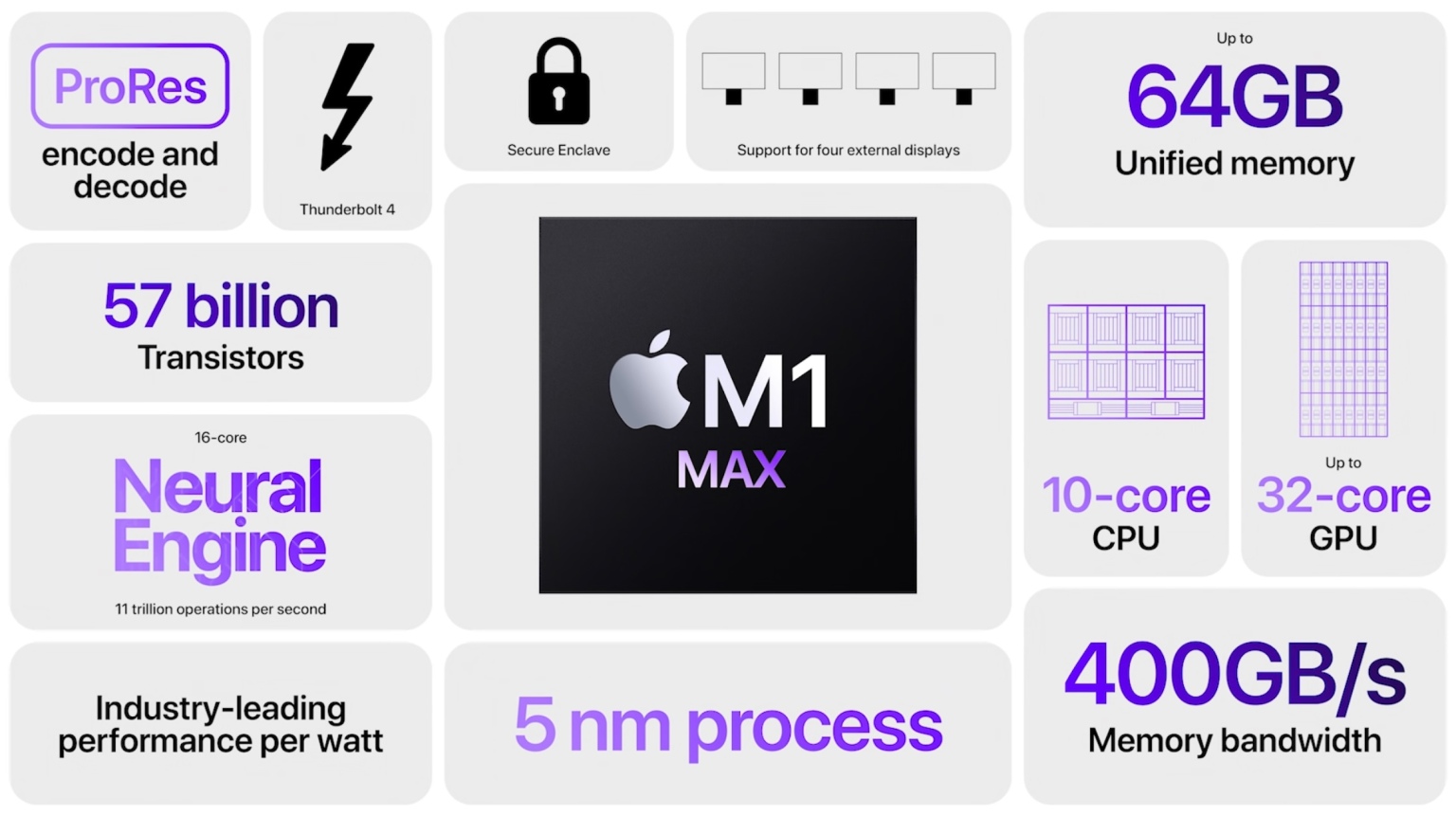
Source www.notebookcheck.com
When it comes to computers and gaming, the GPU, or graphics processing unit, is the heart and soul of the system. It's responsible for creating the stunning graphics and smooth frame rates that we all love. Unfortunately, GPUs can experience issues known as "artifacts", which can negatively impact the gaming experience.
GPU artifacts can take many forms, including screen tearing, flickering, or distorted images. These issues can be caused by a variety of factors, including overheating, driver problems, or faulty hardware. Regardless of the cause, GPU artifacts can be extremely frustrating and often lead to decreased performance and lower frame rates.
Fortunately, there are ways to detect and fix GPU artifacts. One of the most common methods is to run stress tests that put the GPU under heavy load to reveal any potential issues. Additionally, updating drivers and properly cooling the system can often help prevent artifacts from occurring in the first place.
So why are GPU artifacts important? For gamers, it's all about the experience. Artifacts can make games almost unplayable, ruining the immersive experience that gaming is all about. By understanding the causes and solutions for GPU artifacts, gamers can take steps to optimize their systems and get the most out of their gaming experience.
What are GPU artifacts?
GPU artifacts or graphical artifacts are visual abnormalities commonly seen on a computer screen when the graphics card or GPU (Graphics Processing Unit) is not functioning properly. These abnormalities can range from small flickering lines to entire blocks of the screen with distorted or missing images.
Causes of GPU Artifacts:
GPU artifacts can be caused by different factors, one of the most common being overheating. When the GPU gets too hot, it can cause the video RAM or other internal components to malfunction, leading to graphical abnormalities. Another cause is driver issues, where the GPU drivers installed on the computer don't match the hardware, or the drivers are outdated. Fluctuating power supply to the GPU also causes graphical abnormalities, as the GPU may not be receiving a stable power supply to function correctly. Lastly, hardware damage such as aging and faulty components can also lead to graphical abnormalities.
Types of GPU Artifacts:
GPU artifacts are classified into two main categories:
| Artifact Type | Description |
|---|---|
| Physical Artifacts | Physical artifacts are noticeable malfunctions that distort the image on the screen. These artifacts can appear as visual glitches such as fuzzy, blurred, or distorted images, flickering, horizontal or vertical lines, or ghosting. Physical artifacts often manifest as clear signs of visual abnormalities. |
| Virtual Artifacts | Virtual artifacts are intermittent and less noticeable graphical abnormalities that do not directly manifest as distorted images on the screen. These artifacts can cause textures and images to appear blocky, grainy, or pixelated, affecting the user's gaming experience. Virtual artifacts can also result in missing frames, which may lead to slower frame rates and stuttering. |
How to Diagnose and Fix GPU Artifacts:
When experiencing GPU artifacts, it is essential to diagnose the problem correctly to find an appropriate solution. Here are some steps to diagnose and fix GPU artifacts:
- Check GPU Temperature: Use a GPU temperature monitoring program to check if the GPU temperature is too high. If it is too high, it means that the GPU may be overheating, and the cooling system may not be working correctly. In this case, clean the cooling fans and replace any damaged fans, if necessary.
- Check GPU Drivers: Check if the GPU drivers installed on the computer are compatible with the graphics card or are updated to the latest version. If not, download and install the latest drivers from the manufacturer's website.
- Check Power Supply: A faulty power supply can lead to fluctuating voltage and cause unexpected shutdowns, freezes, or other system malfunctions. Check if the power supply is supplying enough power to the GPU to run optimally. Try switching to a different power supply unit if the problem persists.
- Hardware Diagnosis: If all else fails, hardware diagnosis should be the next step. Run a benchmark program to test the GPU's performance and identify any hardware malfunction. If the problem persists, consider replacing the GPU or seeking professional help.
GPU artifacts can be frustrating, and they may indicate significant issues with the graphics card or other hardware components. As a precaution, it is best to perform regular maintenance on the graphics card and ensure that it is functioning optimally to prevent any potential issues.
References:
1. https://en.wikipedia.org/wiki/Video_artifact
Common types of GPU artifacts
GPU artifacts are errors that occur in the display output when your graphics processing unit (GPU) fails to function correctly. These visual glitches can range from minor issues to severe problems that can affect the overall performance of your system. Here are the common types of GPU artifacts that you might encounter:
1. Tearing
Tearing is a common problem that occurs when the GPU sends frames to the display out of sync with the display's refresh rate. As a result, the display will show visible lines or tears where the image is out of alignment. Tearing is more noticeable in fast-paced games or videos with high frame rates.
2. Stuttering
Stuttering occurs when the GPU misses a frame due to a performance issue or bottleneck in the system's components. The display may lag or the gameplay may become choppy, with uneven frame rates that drop in and out of sync. Stuttering can be caused by various factors such as outdated drivers, overheating, or insufficient power supply.
A table can be used to summarize the common types of GPU artifacts:
| Common Types of GPU Artifacts | Description |
|---|---|
| Tearing | Occurs when the GPU sends frames to the display out of sync with the display's refresh rate resulting to visible lines or tears. |
| Stuttering | Occurs when the GPU misses a frame due to a performance issue or bottleneck in the system's components with uneven frame rates that drop in and out of sync. |
3. Artifacts in textures and geometry
Texture and geometry artifacts are visual glitches that occur when the GPU fails to render images or 3D models correctly. These issues may appear as distorted textures, flickering objects, or missing polygons. Artifacts in textures and geometry can be a sign of outdated drivers, overheating, or hardware failure.
4. Artifacts in color and brightness
Color and brightness artifacts can cause a display to show incorrect colors or uneven brightness levels. The image may appear washed out, have a significant color shift, or dark patches on the screen. These issues can be caused by faulty video drivers, a bad cable connection, or an incorrect color profile.
A list can also be used to enumerate the common types of GPU artifacts:
- Tearing
- Stuttering
- Artifacts in textures and geometry
- Artifacts in color and brightness
If you encounter any of these common types of GPU artifacts, it is essential to troubleshoot the issue to prevent further damage to your system. You can start by checking your system components, updating your drivers, and ensuring proper airflow to your GPU. If the issues persist, you may need to seek help from a professional technician or consider replacing your GPU.
For more information on GPU artifacts, you can visit Wikipedia's page for computer glitches in game development.
Causes of GPU Artifacts
GPUs (Graphics Processing Units) are essential hardware components of computers that provide high-quality graphics and video performance. GPU artifacts, however, can occur from time to time and can greatly affect the quality of graphics and video output.
1. Overheating
One of the most common causes of GPU artifacts is overheating. When a GPU overheats, it can cause the circuitry to malfunction and create graphics issues like artifacts. Overheating can occur when the airflow inside the computer is restricted, or when dust accumulates inside the GPU fan or heatsink, leading to an improper heat dissipation process. The high temperature can also cause damage to the GPU itself, which may result in permanent artifact issues. Proper ventilation and cleaning the computer's internal components can help prevent overheating issues.
2. Hardware Defects
GPU artifacts can also be caused by hardware defects, such as damaged or improperly installed hardware components. A loose or damaged connection between the GPU and the motherboard can cause artifacts, as well as a malfunctioning power supply. Improperly installed RAM or a faulty power supply can cause voltage fluctuations, which may result in artifact issues. Inspecting the internal components of the computer and re-seating components can help resolve hardware issues.
3. Overclocking
Overclocking, or the process of running a GPU at a higher clock speed than it was designed to operate, is a common cause of GPU artifacts. Overclocking can cause instability issues that may result in graphics artifacts or even hardware failure. Increasing the clock speed can also generate excess heat, which can again cause artifact issues. Properly understanding the implications of overclocking and proper cooling can help prevent overclocking related artifact issues.
| Causes of GPU Artifacts | Preventive Measures |
|---|---|
| Overheating | Proper ventilation and cleaning |
| Hardware Defects | Inspect internal components and re-seat components |
| Overclocking | Properly understanding the implications of overclocking and proper cooling |
In conclusion, GPU artifacts can be a frustrating problem that can impact a user's computing experience. It is important to properly maintain and inspect the computer's internal components to prevent artifact issues. Knowing the common causes and preventative measures can help alleviate this issue.
For more information about GPU artifacts, please visit Wikipedia.
How to Diagnose GPU Artifacts
GPU artifacts refer to the visual abnormalities that occur on your computer screen. These visual anomalies can take many forms, including distorted images, flickering lines, erroneous coloration, and a host of other aberrations. Diagnosing GPU artifacts is vital as it can happen for a wide range of reasons. This article will list down the various techniques used to diagnose GPU artifacts and the best practices you can use to remediate the problem.
1. Visual Inspection
The easiest way to diagnose GPU artifacts is by doing a visual inspection. Start by examining your screen for any design anomalies. Look out for lines, shapes, and other patterns that appear distorted or are flickering. If you can see these patterns, then it could be a sign that there are GPU artifacts present.
You can also determine if your computer is running in safe mode, as this can help identify whether the graphics driver is part of the issue. Safe mode disables the overall functionality of your graphics card and uses a default driver instead, which explains why it offers low-quality graphics.
2. Software Diagnosis
Aside from visual inspection, using specific software can aid in diagnosing GPU artifacts. Engineers have developed a host of different GPU testers that can display stress tests to identify GPU artifacts present in your system. Here are some software tools that can help:
| Software Tool | Purpose |
|---|---|
| 3DMark | This software performs real-time stress tests on the system to identify GPU artifacts and evaluate the performance of different graphical components. |
| MSI Afterburner | This software is used to monitor the temperature and performance of graphics components while tweaking the settings to improve visual appearance and performance. |
3. Hardware Diagnosis
Hardware Diagnostics is the next method that can help to diagnose GPU artifacts. The hardware diagnostic processor uses a series of advanced algorithms to test the GPU hardware. This will help detect any abnormalities, either electronically or physically. Consider these options:
- Unplug any unnecessary hardware that is connected to the graphical processing unit.
- Identify any connections that may be loose.
- Test the GPU using known good components such as a spare monitor or a known-working video cable.
4. Additional Diagnosis Techniques
Here are additional diagnosis techniques to help identify GPU artifacts:
- Restart the computer
- Update your Graphics driver
- Raise the fan speed
- Replace your graphics card
Many issues with GPU artifacts may come down to driver problems. Ensure that your GPU drivers are up to date by visiting the manufacturer's website to install the latest updated drivers. If your GPU is reaching unsafe temperature levels, then monitor it using hardware diagnostics to avoid overheating. In extreme cases where none of these diagnosis techniques work, consider replacing your graphics card altogether.
Conclusion:
GPU artifacts may not have one specific underlying cause. Instead, they may be due to a wide range of issues that make them challenging to diagnose. This article introduced methods to diagnose GPU artifacts that range from simply taking an elementary visual inspection to employing robust software tools. Other more advanced diagnosis techniques include efficiently carrying out hardware diagnostics and searching for interruptions in hardware connections. If you have tried all these methods and none seem to be working, a quick internet search or expert advice can often go a long way.
External Reference: Graphics Processing Unit
When experiencing GPU artifacts, it's important to monitor your GPU temperature to ensure it's within acceptable ranges.
Tips for fixing GPU artifacts
If you are an avid PC gamer, you’ve likely experienced the dreaded GPU artifacts. These are graphical glitches that can appear out of nowhere, disrupting your gaming experience. Fortunately, there are ways you can fix (or at least reduce) the issue. In this article, we’ll be sharing some tips for fixing GPU artifacts.
1. Checking Your GPU Temperature
As GPUs age, they tend to run hotter and might not be able to handle the heat. This can cause graphical glitches. The first thing you should check when you notice anomalies on your screen is to see if your GPU is overheating. Use a temperature monitoring software like MSI Afterburner to check your GPU temperature while gaming. If the temperature goes over 90°C, then it’s time to clean your computer to alleviate the heat build-up. You can also use an adequate cooling system, like a liquid cooling solution or a better fan configuration.
2. Update your Graphics Drivers
Another possible cause of GPU artifacts is outdated drivers. Check the graphics card vendor's website, like Nvidia and AMD, and see if there’s a new driver update. Once installed, the new driver can fix any issues with your GPU and make sure it’s running optimally. Remember, a new GPU driver can reduce the chance of graphic glitches consistently.
3. Power Supply Unit (PSU) Capacity
If your modern gaming PC suffers from the GPU artifacts, though it is well equipped with new drivers and proper cooling, the cause can be your PSU not providing your graphics card with the required power to run speeds. In this case, getting your system equipped with a higher wattage PSU can solve the issue to ensure you have a sufficient power supply.
4. GPU RMA
If your graphics card is still experiencing artifacts after trying the above solutions, it might be time to get a replacement for your card. In this case, you should check if your graphics card is still covered under warranty. You might get a replacement card from your vendor if it’s found defective. Just make sure it’s due to hardware issues, not glitches caused by software.
5. Underclocking the GPU
If all previously mentioned techniques didn't work, you can try underclocking the GPU. It means decreasing the clock speed of your graphics card to reduce heat build-up and potential overload to the chip. This is done to limit the GPU to generate FPS to the highest limit possible. Remember that underclocking the GPU results in lower performance, and you may notice reduced frame rates in the games. Also, you should always note the original specifications of your GPU to make sure you’re not underclocking any below its specifications.
| Options | Pros | Cons |
|---|---|---|
| clean your computer | reduces temperature | takes time and effort |
| update your drivers | easy to do | may not solve the problem |
| higher wattage PSU | ensure stability of your gaming rig | expensive upgrade |
| graphics card replacement | can fix the issue | new expenses |
| underclocking the GPU | reduces temperature | lower performance or frame rate |
Lastly, it’s worth noting that not all GPU artifacts can be fixed. Some issues might be beyond your control and require the help of a professional. However, before you take your hardware to a technician or buy a new one, these tips for fixing GPU artifacts can always come in handy.
If you would like to learn more about GPU artifacts, check out the Wikipedia page.
Preventing GPU artifacts from occurring
GPU artifacts can cause frustration and even lead to crashes while using your computer. Here are some steps you can take to prevent them from occurring:
1. Ensure proper cooling
Overheating can cause GPU artifacts to occur. Ensure that your computer has adequate cooling, such as fans, heatsinks, and liquid cooling. Keep your computer in a well-ventilated area and remove any dust buildup to allow for proper airflow. Monitor the temperatures of your GPU using software like MSI Afterburner.
2. Choose high-quality components
Choosing high-quality components such as a high-end GPU, power supply, and motherboard can reduce the chances of GPU artifacts. These components are less likely to fail or cause issues that can lead to artifacts.
3. Use proper settings
Using improper settings on your GPU can cause artifacts. Ensure that your GPU settings match the capabilities of your hardware. Overclocking your GPU beyond its capabilities can cause artifacts and decrease its lifespan. Use software like AMD Catalyst or Nvidia Control Panel to adjust your GPU settings.
4. Check for driver updates
Outdated drivers can cause GPU artifacts. Check for updates regularly and install the latest ones from your GPU manufacturer's website or through Windows updates.
5. Perform regular maintenance and updates
Performing regular maintenance on your computer, such as updating software and running virus scans, can reduce the chances of GPU artifacts. Keep your operating system up to date and clean up any unnecessary files or programs.
6. Consider underclocking
If you're experiencing frequent GPU artifacts despite taking the above steps, you may want to consider underclocking your GPU. This involves reducing the clock speed of your GPU to a stable level. While it may result in lower performance, it can prevent artifacts from occurring. Use software like MSI Afterburner to adjust your GPU clock speed.
In conclusion, preventing GPU artifacts from occurring is essential for maintaining the health and longevity of your computer. By ensuring proper cooling, choosing high-quality components, using proper settings, checking for driver updates, performing regular maintenance and updates, and considering underclocking, you can reduce the chances of experiencing GPU artifacts.
Sources: https://en.wikipedia.org/wiki/Graphics_processing_unit#Artifacts
The Importance of Maintaining a Healthy GPU to Avoid Artifacts
A GPU, or Graphics Processing Unit, is a vital component of a computer system responsible for rendering graphics and images on the screen. A healthy GPU ensures that the images are displayed on the screen without any distortions or issues. However, a defective GPU can lead to artifacts that distort the images, making them look blurry or pixelated. It is crucial to maintain a healthy GPU to avoid these artifacts, as they can significantly affect the overall performance of a computer system.
What are GPU Artifacts?
GPU artifacts are anomalies or distortions in the images produced by a defective GPU. They are usually characterized by any visual discrepancies that users may notice while using their computer. Some common examples of GPU artifacts include:
- Screen flickering and blackouts
- Pixelation or distortion of images
- Colored lines or dots on the screen
- Blurred or distorted Gradients
These anomalies can occur due to various reasons, including overheating, outdated or incorrect drivers, damaged hardware components, and other issues.
The Importance of Maintaining a Healthy GPU
A healthy GPU is essential for smooth and seamless graphics performance. Regular maintenance and monitoring of the GPU can help prevent artifacts from appearing on the screen. There are several reasons why maintaining a healthy GPU is essential:
- Prevents System Crashes: A defective GPU can cause system crashes, leading to data loss and other issues. A healthy GPU can ensure there are no crashes or sudden system shutdowns.
- Extended GPU Lifespan: Maintaining a healthy GPU can extend its lifespan and prevent the need for frequent GPU upgrades.
- Optimizes Gaming Performance: For gamers, maintaining a healthy GPU can ensure high-quality gaming performance with no lag or visual discrepancies.
- Improved Productivity: A healthy GPU can improve productivity by enhancing the display of complex graphics and 3D images, ensuring a seamless workflow in fields such as architecture and engineering.
How to Maintain a Healthy GPU
Maintaining a healthy GPU is relatively simple and requires regular checks and monitoring of the GPU's temperature and drivers. Here are some tips to help ensure your GPU stays healthy:
- Clean the GPU: Dust and debris can accumulate on the GPU's heatsinks and cause overheating. Regular cleaning of the GPU can help prevent overheating and extend its lifespan.
- Monitor the GPU's Temperature: High GPU temperatures can cause artifacts and damage to the GPU hardware components. Use software such as MSI Afterburner to monitor the GPU's temperatures and adjust the fan speed accordingly.
- Update Drivers: Outdated GPU drivers can cause artifacts and other issues. Always ensure that your GPU drivers are up to date, as new updates can optimize the performance and compatibility of the GPU with the computer system.
- Use recommended Settings: Using recommended graphics settings can prevent the GPU from overloading, causing artifacts, and ensure optimal performance.
- Avoid Overclocking: Overclocking can cause overheating and hardware damage, leading to artifacts. It is advisable to avoid overclocking to maintain a healthy GPU.
Conclusion
GPU artifacts are a common issue faced by computer users worldwide. Maintaining a healthy GPU is essential to prevent artifacts and ensure a seamless graphics experience. Regular cleaning and monitoring of the GPU temperature, updating drivers, and avoiding overclocking can help ensure a healthy GPU. Keeping these tips in mind can greatly enhance the lifespan and performance of your GPU, providing a smooth and seamless graphics experience.
External link: https://en.wikipedia.org/wiki/Graphics_processing_unit
FAQ and Conclusions
- What are GPU artifacts?
- What causes GPU artifacts?
- How can I fix GPU artifacts?
- Can GPU artifacts damage my computer?
- How do I monitor GPU temperatures?
- Is overclocking safe for my GPU?
- What should I do if my GPU artifacts persist even after troubleshooting?
- Can a bad power supply cause GPU artifacts?
- Is it necessary to update my graphics card drivers regularly?
- Can a virus cause GPU artifacts?
GPU artifacts refer to any visual glitches or anomalies that occur on a computer screen while running graphic-intensive applications or games. These glitches may manifest as flickering, stutters, distortions, or colored lines, and they can affect the performance and stability of your system.
GPU artifacts can occur due to various reasons such as overheating hardware, outdated or corrupted drivers, faulty graphics card, power supply issues, or even overclocking. Identifying and fixing the root cause of the issue is essential to prevent any further damage.
The first step to fix GPU artifacts is to identify the root cause of the issue. If it's due to overheating, then cleaning your computer's internal components, replacing thermal paste, or upgrading your cooling system can help. If it's due to outdated or corrupted drivers, then updating or reinstalling your graphics card drivers can resolve the issue. In case of a faulty graphics card, you may need to replace it.
Yes, GPU artifacts can potentially damage your computer as they usually indicate a malfunctioning hardware component. Continuously running your system with GPU artifacts can lead to further hardware damage and even data loss.
You can use software utilities such as GPU-Z, MSI Afterburner or HWMonitor to monitor your GPU temperatures and identify overheating issues.
Overclocking can be safe for your GPU if done correctly and within safe limits. However, it can also increase the risk of overheating, hardware damage, and system instability. It's important to follow proper overclocking techniques and not push the limits beyond safe levels.
If GPU artifacts persist even after troubleshooting, it may be time to consider replacing your graphics card.
Yes, a bad power supply can cause GPU artifacts as it can't provide consistent power to your system which can lead to system instability and graphics card malfunction.
Yes, updating your graphics card drivers regularly can ensure better compatibility, performance, and stability while running graphic-intensive applications.
No, a virus cannot cause GPU artifacts as it's a hardware-related issue. However, virus infections can harm your system's performance and stability, leading to other issues that may manifest as GPU artifacts.
In conclusion, GPU artifacts can be a frustrating issue to deal with, but identifying and addressing the root cause of the problem is crucial to prevent any further damage to your system. Regular maintenance, monitoring GPU temperatures, and updating drivers are essential practices to ensure your system runs smoothly and efficiently. If the issue persists, it may be time to consider replacing your graphics card. Prevention is key, as a well-maintained system is less prone to GPU artifacts and other issues that can affect your computer's performance and longevity.


Post a Comment
Post a Comment