
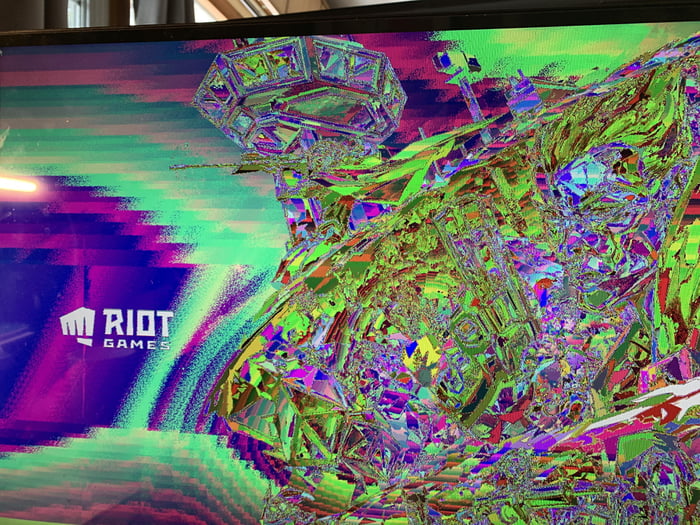
Source 9gag.com
Are you experiencing graphic issues on your computer or laptop? Maybe you have noticed strange visual glitches, colors that are distorted, or your system crashes when running high-performance software. These are known as GPU artifacts. The good news is that there is a solution for this issue - a GPU artifacts fix.
Fixing the artifacts on your GPU can help improve the performance of your computer. This simple fix is particularly essential for gamers, photo and video editors, and any other professionals that rely on accurate, high-resolution graphics.
The primary reasons for GPU artifacts are outdated drivers, overheating, power supply issues, or the graphics card itself. By fixing the artifacts, you can enjoy a more reliable, efficient system that runs smoother and faster.
There are a few ways to fix the GPU artifacts issue, such as updating your drivers, adjusting the clock speed of your graphics card, or clearing the dust from your computer's internal components. For more complicated issues, it may be necessary to replace the GPU or seek professional help.
By fixing the GPU artifacts, you can improve the lifespan and overall performance of your computer. So why wait? Get started on a GPU artifacts fix, and enjoy the benefits of smooth, reliable graphics.
Understanding GPU Artifacts: Causes and Types
Most gamers or graphic designers have encountered the unsightly issue of GPU artifacts in their work. These artifacts can be disruptive, causing distortions or pixels that interfere with overall visual quality. Understanding the causes and types of GPU artifacts can help you fix the issue and continue with your work smoothly.
Causes of GPU Artifacts
GPU artifacts occur due to various reasons, including hardware or software issues. Here are some of the common reasons:
| Reason | Description |
|---|---|
| Overheating | When a GPU overheats, it may fail to render graphics correctly, causing artifacts. |
| Outdated drivers | Graphics cards need updated drivers to work efficiently. Outdated drivers can cause crashes, freezes, or artifacts. |
| Overclocking | When you overclock your GPU, you're pushing it beyond its optimal capacity, causing artifacts to occur. |
| Hardware failure | Faulty or damaged GPU components can cause artifacts. |
| Power supply issues | Insufficient power supply can cause GPU artifacts since it results in inadequate power for the graphics card to operate optimally. |
For example, sometimes a gamer might push their GPU beyond its optimal capacity, resulting in overheating and causing GPU artifacts. Another example might be a graphic designer using an outdated driver, resulting in the production of artifacts that they may mistake as a design error.
Types of GPU Artifacts
There are different types of GPU artifacts, and identifying them is the first step towards fixing them. Here are three types of GPU artifacts:
- Texture Artifacts: These types of artifacts occur when textures render improperly. For instance, the texture may appear warped, or it may change shape rapidly.
- Colour Artifacts: Colour artifacts can be identified as odd colours that appear where they shouldn't. Sometimes, these unusual colours flash rapidly or change quickly.
- Geometry Artifacts: These artifacts appear when the graphics card fails to render the images correctly. For instance, the image may appear skewed or distorted, or the pixels in the image may appear to separate from each other.
Knowing the types of artifacts present can make it easier to pinpoint the cause of the problem.
The GPU Artifacts Fix
Fixing GPU artifacts requires identifying the cause of the problem and taking steps towards resolving it. Here are a few things to consider:
- Clean your GPU: Overheating can cause artifacts to appear. To fix this, ensure your computer regularly undergoes cleaning. Use compressed air to blow out any dust or particles from the fans or the graphics card itself.
- Update GPU drivers: Outdated drivers can result in GPU artifacts, and the best way to remedy this is by updating your GPU drivers prudently. Keep an updated system to prevent these issues from occurring.
- Undervolting or disabling overclocking: Overclocking pushes your GPU beyond its recommended capacity, increasing the likelihood of artifacts. To fix this, you can undervolt it back to its original settings or disable overclocking altogether, which may lower the risk.
- Replace faulty hardware: If you have a faulty GPU component, there is no other option except to replace that part.
- Upgrade power supply: GPU draws power from the power supply to operate optimally. If there is an inadequate supply of power to the GPU, it may result in GPU artifacts. Consider upgrading the power supply to ensure that it supplies enough power.
Remember, not all solutions work for every cause of GPU artifact; therefore, it is essential to identify the exact root of the problem before attempting to repair it. In some instances, the best solution to remedy GPU artifacts is by replacing that specific part of the GPU.
If you experience continued issues even after trying various solutions, reach out to a professional for assistance.
Troubleshooting Common GPU Artifact Issues
2. How to Fix GPU Artifacts?
If you have confirmed that your GPU is causing artifacts, it's time to fix the issue. Here are some of the most common and effective ways to fix GPU artifacts:
- Clean the GPU: Dust is the biggest enemy of electronics, and GPUs are no exception. Dust on the GPU can cause overheating, which may result in artifacts. Make sure to use compressed air or a clean brush to remove dust from the GPU.
- Check the cables: Loose or damaged cables can cause artifacts. Check all the cables that connect your GPU to the monitor. Make sure they are properly connected, and replace any damaged cables.
- Update your GPU drivers: Outdated or corrupted GPU drivers can cause artifacts. Download the latest drivers for your GPU from the manufacturer's website and install them. Reboot your PC once the installation is complete.
- Overclocking or undervolting: Overclocking or undervolting can cause artifacts. If you have recently overclocked or undervolted your GPU, try resetting it to its default settings.
- Adjust the GPU temperature: If you're experiencing artifacts during intensive gaming or GPU usage, try adjusting the temperature settings. You can use third-party software to monitor and adjust your GPU temperature settings. Make sure the temperature is below the maximum operating temperature of your GPU.
- Replace the GPU: If none of the above methods work, your GPU may be damaged. In this case, the best option is to replace it with a new one.
It's important to note that fixing GPU artifacts can be a trial-and-error process. You may need to try multiple methods before your issue is resolved.
External link: For more information about GPU artifacts, visit Wikipedia.
Quick Fixes for GPU Artifacts: Tips and Tricks
3. Updating GPU Drivers
Updating your GPU drivers is an important step in fixing GPU artifacts. Drivers help the GPU communicate with the computer's operating system and perform its functions. Outdated or corrupted drivers can cause display issues, including artifacts. Here are some tips for updating your GPU drivers:
- Check for driver updates regularly: GPU manufacturers release driver updates periodically to fix bugs and address compatibility issues. Make sure to check for updates on the manufacturer's website or through their driver-update software.
- Uninstall the previous drivers: Before installing the new drivers, uninstall the previous ones from your computer. This ensures a clean installation and reduces the likelihood of driver conflicts.
- Use DDU: Display Driver Uninstaller (DDU) is a third-party software that helps users completely remove old drivers from their system. It can also prevent problems caused by conflicting drivers and leftover files.
- Choose the correct driver: Make sure to select the correct driver for your GPU model and operating system. Downloading and installing the wrong driver can cause more problems than it solves.
- Perform a clean install: When installing the new driver, choose the "clean install" option. This ensures that the new driver completely replaces the old one and all its components.
Updating GPU drivers can be an effective solution for fixing GPU artifacts, and it is a relatively easy process. By regularly checking for updates, uninstalling previous drivers, using DDU, choosing the correct driver, and performing a clean install, users can maintain optimal GPU performance and avoid display issues.
It is important to note that GPU artifacts can also be caused by hardware issues, such as overheating or a faulty GPU. If updating GPU drivers does not resolve the problem, it may be necessary to seek professional assistance or replace the hardware.
In conclusion, updating your GPU drivers can be a simple and effective way to fix GPU artifacts. By following the tips outlined above, users can ensure that their GPU is running on the latest software and prevent display issues. However, if the problem persists, it is important to consider other potential causes and seek appropriate solutions. For more information on GPU drivers, check out the Wikipedia page on Device Drivers.
GPU Artifacts Fix: Updating Drivers and Firmware for Artifact Prevention
One of the common solutions in fixing GPU artifacts is updating the drivers and firmware of the graphics card. This is because outdated or buggy drivers and firmware may lead to compatibility issues, which in turn, can cause artifacts in the display output.
Updating Graphics Card Drivers
One way to fix GPU artifacts caused by outdated drivers is by updating the graphics card driver. There are two ways to do this:
| Method | Steps |
|---|---|
| Manual Update |
|
| Automated Update |
|
Updating the graphics card driver ensures that the GPU functions properly and is compatible with other hardware and software components in the system.
Updating GPU Firmware
GPU firmware is a program that controls the functionality of the graphics card hardware. Outdated or buggy firmware can cause compatibility issues with other components of the system, leading to GPU artifacts. Firmware updates are provided by the graphics card manufacturer and can be installed using the following steps:
| Steps |
|---|
|
Firmware updates not only fix bugs and improve compatibility but also enhance the performance of the graphics card.
Precautions When Updating Drivers and Firmware
Although updating drivers and firmware is a reliable solution for fixing GPU artifacts, it is important to take precautions to avoid issues that may arise during or after the update. Here are some guidelines to remember:
- Back up important data before initiating the update
- Ensure that the system meets the requirements for the update
- Make sure to download drivers and firmware from reputable sources
- Do not interrupt the update process to prevent system instability
- Check for any conflicts between the updated driver and firmware and other components of the system
Following these guidelines can help ensure a smooth and successful update process, which can ultimately lead to a fix for GPU artifacts.
Conclusion
GPU artifacts can be caused by many factors, including outdated or buggy drivers and firmware. Updating the graphics card driver and firmware can help prevent these issues and improve overall performance. However, it is important to take precautions before and during the update process to avoid system instability or conflicts. Always remember to back up important data before initiating an update and make sure to download updates from reputable sources.
Sources:
GPU Artifacts Fix: Overclocking and GPU Artifacts: Finding the Sweet Spot
Overclocking can provide an effective way to boost the performance of your graphics processing unit (GPU). However, overclocking also carries some risks such as overheating, stability issues, and GPU artifacts. Artifacts are glitches in the images displayed on the screen and they can occur due to unstable overclocking.
In order to fix GPU artifacts, it is important to find the sweet spot of your GPU overclock. The sweet spot is the optimal point at which your GPU is running at peak performance without causing instability or artifacts. Here are the steps to find the sweet spot for your GPU:
1. Benchmark your GPU
Before you start overclocking your GPU, it is important to benchmark it to determine its current performance level. You can use benchmarking software such as FurMark or 3DMark to measure your GPU's performance. Run the benchmark and take note of the score.
2. Increase GPU clock speed
The next step is to increase your GPU's clock speed. You can use software such as MSI Afterburner or EVGA Precision X1 to do this. Increase the clock speed gradually in small increments of 10-20 MHz and run the benchmark after each increase. Continue increasing the clock speed until you start seeing artifacts or stability issues.
3. Increase GPU voltage
If you start seeing artifacts or stability issues, you can try increasing the GPU voltage. Increasing the voltage can help stabilize the GPU at higher clock speeds. However, increasing the voltage also increases the heat generated by the GPU, so be careful not to increase it too much. Increase the voltage in small increments of 5-10 mV and test the stability of the GPU after each increase.
4. Test stability
Once you have found a stable clock speed and voltage for your GPU, it is important to test its stability. You can do this by running a stress test such as FurMark or using benchmarking software such as 3DMark. If the GPU passes the stress test without any issues, then it is stable.
5. Fine-tune overclock settings
After finding the stable sweet spot for your GPU, you can fine-tune the overclock settings to improve the performance further. You can try increasing the memory clock speed or adjusting the fan speed to lower the temperature. Keep in mind that further overclocking may increase the risk of instability and artifacts, so proceed with caution.
In summary, finding the sweet spot through careful and gradual overclocking can help fix GPU artifacts. Benchmarking, increasing the clock speed and voltage, testing stability, and fine-tuning the overclock settings are the key steps in the process. Always remember to keep the GPU temperature under control and not overclock too aggressively. By following these steps, you can optimize the performance of your GPU without risking damage or instability.
External Link: https://en.wikipedia.org/wiki/Graphics_processing_unit
GPU Artifacts Fix
GPU artifacts occur when there are issues with the graphics processing unit (GPU) in a computer. These artifacts can be frustrating as they can cause your computer to crash or freeze. There are several ways to fix GPU artifacts, ranging from software fixes to hardware replacements. In this article, we will look at some of the different ways to fix GPU artifacts, and when to call in professional help.
Software Fixes
If you are experiencing GPU artifacts, the first thing you should do is check if there are any updates available for your graphics card drivers. Outdated or buggy drivers can often cause issues with the GPU. To update your drivers, simply go to your graphics card manufacturer's website and download the latest driver for your specific graphics card.
Another software fix is to make sure that your computer is not overheating. Overheating can cause GPU artifacts, as well as a host of other issues. Make sure that your computer's cooling system is working properly, and clean out any dust or debris that may have accumulated in your computer's fans and vents.
Hardware Fixes
If you have tried all of the software fixes and you are still experiencing GPU artifacts, it may be time for a hardware fix. One hardware fix is to replace your graphics card. If your graphics card is outdated or faulty, it may be causing the GPU artifacts. While replacing a graphics card can be expensive, it may be the only way to fix your GPU artifacts if the issue is hardware-related.
Another hardware fix is to replace your power supply unit (PSU). A faulty PSU can cause a host of issues, including GPU artifacts. It's important to make sure that your PSU is capable of supplying enough power to your graphics card and other components.
When to Call in Professional Help
While software and hardware fixes can often solve GPU artifact issues, there are times when it's best to call in professional help. Here are some signs that it's time to call in the professionals:
- If you are uncomfortable with opening up your computer and replacing hardware components
- If you have tried all of the software and hardware fixes, and are still experiencing GPU artifacts
- If you are unsure what is causing the GPU artifacts
Calling in a professional can save you time and money in the long run, as they will be able to diagnose the issue quickly and provide an appropriate solution.
In conclusion, GPU artifacts can be frustrating, but there are several ways to fix them. From software fixes to hardware replacements, there are options available for every budget and skill level. If you are unsure about how to fix your GPU artifacts, or if you have tried all the fixes and are still experiencing issues, it may be time to call in professional help. With the right help, your GPU artifacts can be a thing of the past.
External Link: https://en.wikipedia.org/wiki/GPU
To fix GPU artifacts, it is important to monitor the GPU temperature and fix artifacting issues. Additionally, you may want to check the average GPU temperature while gaming and identify any issues with the GPU artifacts.
Long-Term Strategies for Preventing GPU Artifacts
GPU artifacts can be a frustrating problem for many users. They can arise due to various reasons, including driver issues, overheating, overclocking, and other hardware/software malfunctions. However, there are some strategies that users can employ to prevent GPU artifacts in the long run. In this article, we will discuss seven such strategies that can help you avoid GPU artifacts and improve the longevity of your GPU.
1. Keep Your System Cool
One of the main causes of GPU artifacts is overheating. When the temperature inside your system rises too high, it can cause the components to malfunction, resulting in artifacts. Therefore, it is essential to keep your system cool. You can accomplish this by installing additional case fans, liquid cooling systems, or other cooling solutions. Additionally, make sure that your system is placed in a cool and well-ventilated area.
2. Avoid Overclocking
Overclocking your GPU might give you a performance boost, but it can also decrease the lifespan of your GPU and cause artifacts. Therefore, it is advisable to avoid overclocking your GPU. If you need additional performance, consider upgrading to a better GPU or CPU.
3. Use High-Quality Components
The quality of the components that you use in your system affects the longevity of your GPU. Therefore, make sure that you use high-quality components, including your power supply, motherboard, RAM, and other peripherals. Using low-quality components can cause instability, which can lead to artifacts.
4. Clean Your System Regularly
Dust buildup inside your system can cause overheating and other issues that can lead to GPU artifacts. Therefore, it is essential to clean your system regularly. You can use compressed air or a vacuum cleaner to clean the dust from your system. Additionally, make sure to clean the fans and other components of your system.
5. Keep Your Drivers Up-to-Date
Outdated drivers can cause compatibility issues that can lead to GPU artifacts. Therefore, it is essential to keep your drivers up-to-date. You can download the latest drivers from the manufacturer's website or use third-party software to update your drivers automatically.
6. Monitor Your GPU Temperatures
Monitoring your GPU temperatures can help you identify issues before they become problematic. You can use software like MSI Afterburner or HWMonitor to monitor the temperature and voltage levels of your GPU. If you notice any irregularities, take action to resolve them before they cause damage to your GPU.
7. Use a Surge Protector
Sudden power surges can cause damage to your GPU and other components. Therefore, it is advisable to use a surge protector to protect your system from power surges and other electrical issues. A surge protector can help prevent GPU artifacts caused by power-related issues.
| Long-Term Strategies for Preventing GPU Artifacts |
|---|
| 1. Keep Your System Cool |
| 2. Avoid Overclocking |
| 3. Use High-Quality Components |
| 4. Clean Your System Regularly |
| 5. Keep Your Drivers Up-to-Date |
| 6. Monitor Your GPU Temperatures |
| 7. Use a Surge Protector |
By following these strategies, you can prevent GPU artifacts and improve the longevity of your GPU. However, if you are still experiencing GPU artifacts, it might be time to replace your GPU or seek professional help. Don't wait until it's too late to take action!
External Link: Wikipedia - Graphics processing unit
FAQ and Conclusions
If you own a computer with a graphics processing unit (GPU), you may have faced issues such as visual glitches or distorted images. These are known as GPU artifacts and can be frustrating when trying to use your device. Here are some frequently asked questions and conclusions to help you deal with GPU artifacts:
FAQ:
Q1: What causes GPU artifacts?
A: GPU artifacts can be caused by overheating, outdated drivers, or a faulty graphics card.
Q2: How do I know if I have GPU artifacts?
A: You may notice visual glitches, lines, or distorted images when using your device.
Q3: How can I fix GPU artifacts?
A: You can try updating your drivers, cleaning your computer to prevent overheating, or replacing the graphics card.
Q4: Is it possible to prevent GPU artifacts?
A: Yes, you can prevent GPU artifacts by regularly cleaning your computer, keeping your drivers up to date, and monitoring your device's temperature.
Q5: Do all graphics cards suffer from GPU artifacts?
A: No, GPU artifacts can happen to any graphics card. However, newer graphics cards are less prone to such issues.
Q6: Is there any software that can fix GPU artifacts?
A: There is no software that can reliably fix GPU artifacts. The best solution is to replace the faulty hardware.
Q7: Should I attempt to fix GPU artifacts myself or seek professional help?
A: It is recommended to seek professional help if you are not experienced in handling computer hardware.
Q8: How much does it cost to replace a graphics card?
A: The cost of replacing a graphics card can vary based on the model and brand. It can range from $100 to $1000.
Q9: Can GPU artifacts cause permanent damage to my device?
A: Yes, GPU artifacts can cause permanent damage to your device if left unaddressed.
Q10: How long does a graphics card last?
A: A graphics card can last anywhere from 3 to 10 years depending on usage and maintenance.
Conclusions:
GPU artifacts can cause frustration for computer users, but they can be prevented by regular maintenance and monitoring. It is important to keep drivers up to date, clean your computer to prevent overheating, and seek professional help if needed. If you do experience GPU artifacts, it is best to address them promptly to prevent permanent damage to your device. Ultimately, newer graphics cards are less prone to such issues, and a well-maintained device can last for years to come.


Post a Comment
Post a Comment