
Source www.nordicid.com
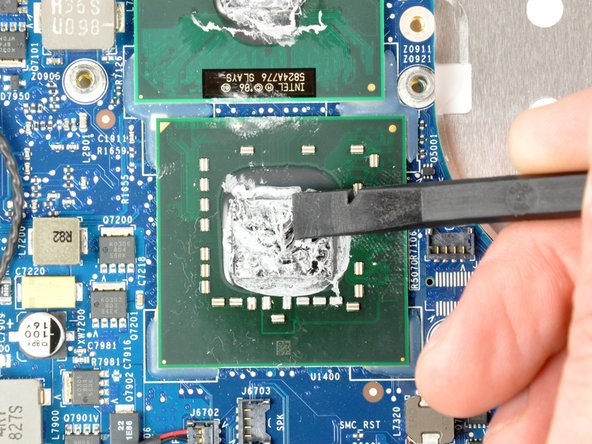
If you're a tech-savvy person who uses computers for gaming, programming or any other purposes, you might have heard of the term "CPU Thermal Throttle".
CPU Thermal Throttle is an essential feature that helps your computer processor from overheating and causing damage to your device. This feature is designed to regulate the temperature of your CPU and prevent it from doing any performance damage.
So, how does it work? When your processor reaches a certain temperature limit, it automatically reduces its clock speed, which is called thermal throttling. This method reduces the temperature of the CPU, keeping it under the safe limit.
Thermal throttling is a great feature for any computer, especially for high-performance systems like gaming rigs or overclocked systems. These systems usually produce a lot of heat, which could damage the hardware and slow down the processor.
Thanks to CPU Thermal Throttle, we can keep our devices running safely, without worrying about overheating. Knowing how the thermal throttle of a CPU works is vital for anyone interested in the technical side of computing.
Understanding CPU Thermal Throttling
CPU thermal throttling is a process where a CPU reduces its performance to prevent it from overheating. It is a safety mechanism built into most CPUs to prevent them from becoming damaged by excessive heat. Understanding how CPU thermal throttling works is essential for anyone building or using a computer for extended periods.
What Causes CPU Overheating?
Before we dive deeper into CPU thermal throttling, we should briefly discuss what causes CPU overheating. CPU overheating can be caused by a variety of factors, such as:
- Insufficient cooling system
- An overclocked CPU
- High ambient temperatures
- Dust accumulation on the heatsink and fan
- Faulty CPU fans
All these factors can lead to the degradation of the CPU's performance and eventually damage it if left unchecked. This is where CPU thermal throttling comes into play.
How Does CPU Thermal Throttling Work?
When a CPU reaches a certain temperature threshold, typically around 85°C, it will start thermal throttling. Its performance will start decreasing gradually until the temperature falls below the threshold. The level of performance dropped depends on the type of CPU and the level of thermal throttling it's experiencing. A processor can reduce its performance by decreasing the clock speed, voltage or both.
If you experience a temperature rise and performance reduction that is uncommon, your CPU might be thermal throttling due to insufficient cooling, over clocking or any other issue that causes heat to develop in the CPU, consider changing the cooling system.
Signs of CPU Thermal Throttling
There are several indications that your CPU may be throttling due to overheating:
- You may observe decreased performance on complex tasks such as file rendering and video encodings.
- You may hear your CPU's cooling fan spin at a higher RPM than usual.
- You may see that your CPU is operating at a lower clock speed than normal.
Preventing CPU Thermal Throttling
The most effective way to prevent CPU thermal throttling is to ensure that your CPU is adequately cooled. This can be achieved by:
- Cleaning your computer's components regularly to prevent dust accumulation
- Ensuring that your settings match the manufacturer's recommended parameters
- Increasing the fan speed or the number of fans installed
- Upgrading your system's cooling mechanisms, such as CPU cooler or liquid cooling system
In conclusion, CPU thermal throttling is a fundamental safety feature designed to keep your CPU from overheating and causing irreparable damage. Understanding how it works and causes will help you in building efficient cooling systems, help you identify issues early enough to maintain your CPU's performance level, and keep your operating temperatures well-maintained for the optimum functioning of your CPU.
For more information, kindly visit https://en.wikipedia.org/wiki/Thermal_speed_limit.
CPU Thermal Throttle
CPU Thermal Throttle occurs when the temperature of the Central Processing Unit (CPU) exceeds the safe operating temperature limit. This happens when a computer's cooling system is unable to dissipate the heat generated by the CPU efficiently. When in this state, the computer performance is limited, and systems like the operating system will throttle the CPU frequency downwards to reduce the amount of heat generated by the CPU. It is a safety feature to protect the CPU from damage that could arise from overheating. Thermal throttle also protects other parts of the computer like the motherboard and power supply unit from being damaged due to heat.
How CPU Temperature Affects Performance
A CPU's operating temperature affects the performance of a computer system in several ways. The following are the ways in which CPU thermal throttle impacts computer performance:
| Impact on Performance | Description |
|---|---|
| Reduced Clock Speed | When the CPU temperature exceeds the limit, the computer system throttles the CPU frequency downwards to reduce power consumption and heat generated. This limits the computer's performance because the CPU is running at a lower clock speed. |
| Reduced Processor Cores | In some cases, the computer system may decide to turn off some processor cores to reduce the amount of heat generated by the CPU. This, in turn, reduces the computer system's performance. |
| System Instability | When a computer system is hot, it may cause instability in the system, resulting in system crashes or shutdowns. These are safety measures to protect the computer system from hardware damage that could arise from overheating. |
| Risk of Hardware Damage | When a CPU is operating at temperatures higher than the recommended limit, it is at risk of permanent damage. The heat generated could also damage other computer components like the motherboard, power supply unit, and other components. |
The performance of a computer system is significantly affected by CPU thermal throttle because the computer processor is the heart of the system. The CPU controls all the processing power in the system, and when it is not functioning optimally, the overall performance of the computer system is affected.
It is crucial to ensure that there is sufficient cooling to prevent the CPU from reaching excessively high temperatures. This is achieved by using adequate cooling methods like air or liquid cooling systems. Additionally, it is essential to ensure the system's case is adequately ventilated to prevent heat buildup that could damage the computer system.
In conclusion, CPU thermal throttle happens when a computer's cooling system is unable to dissipate the heat generated by the CPU efficiently. This limits the computer's performance and protects the CPU and other hardware from damage that could arise from overheating. The performance of the computer is significantly affected by CPU thermal throttle because the CPU controls all the processing power in the system. It is crucial to ensure adequate cooling to prevent the CPU from reaching excessively high temperatures.
External link: Thermal Design Power - Wikipedia
Common Causes of CPU Thermal Throttling
CPU thermal throttling refers to the process where a computer’s central processing unit (CPU) slows down its performance to prevent overheating. There are different factors that cause CPU thermal throttling, which can affect your computer's performance. In this article, we will discuss the most common causes of CPU thermal throttling.
1. Poor Thermal Design and Insufficient Cooling
One of the major causes of CPU thermal throttling is poor thermal design and insufficient cooling. When a CPU generates heat, it needs a cooling system to dissipate the heat to keep its temperature at an acceptable level. The cooling system’s efficiency can be affected by several factors, including insufficient airflow, poorly designed heatsinks, and the use of low-quality thermal interface materials. This can cause the CPU’s temperature to rise beyond its safe operating temperatures, leading to thermal throttling.
Table 1 below outlines some of the factors that contribute to poor thermal design and insufficient cooling that can result in CPU thermal throttling.
| Factors | Description |
|---|---|
| Insufficient airflow | Restriction of air intake or blockage of fan |
| Poorly designed heatsinks | Heatsinks that are too small, made of low-quality material or with a poor layout, can lead to poor heat dissipation |
| Low-quality thermal interface materials | The materials used to transfer heat from the CPU to the heatsink (e.g. thermal paste) can be of low quality, leading to poor thermal conductivity |
2. Overclocking
Overclocking refers to the process of increasing the clock speed of a CPU beyond its default settings. Overclocking can result in improved performance, but it can also cause the CPU to generate more heat than it was designed to handle. This can lead to thermal throttling if the cooling system is not adequate enough to dissipate the excess heat.
List 1 below outlines some of the risks of overclocking that can lead to CPU thermal throttling.
- Increased power consumption
- Reduced hardware lifespan
- System instability and crashes
3. Dust and Dirt Buildup
Regular maintenance of your computer hardware is essential to ensure smooth performance, and it helps prevent dust and dirt buildup. When dust and dirt build up on your computer components, they can restrict the airflow, which can cause overheating of the CPU. Overheating of the CPU can lead to thermal throttling.
List 2 below outlines some of the steps you can take to prevent dust and dirt buildup and maintain your computer's thermal efficiency.
- Regularly clean your computer's fans and heatsinks.
- Avoid placing your computer in dusty or humid environments.
- Consider using air filters to protect your computer from dust and debris.
- Invest in a good cooling system and thermal paste for better thermal efficiency.
In conclusion, CPU thermal throttling can impact your computer's performance and cause it to slow down. By understanding the common causes of CPU thermal throttling, you can take the necessary steps to prevent it from happening. Maintaining good thermal design, avoiding overclocking, and regularly cleaning your computer hardware are some of the steps you can take to minimize the risk of CPU thermal throttling.
Ways to Monitor Your CPU Temperature
The CPU is one of the most critical components in your computer. It's responsible for carrying out all the instructions that make your computer work. The CPU generates a lot of heat, and if it gets too hot, it may malfunction or even be permanently damaged. One of the most common problems that can occur when the CPU overheats is thermal throttling. Thermal throttling is a mechanism that the CPU employs to avoid overheating by slowing down its performance.
1. BIOS/UEFI
The Basic Input/Output System (BIOS) or Unified Extensible Firmware Interface (UEFI) is a low-level software that controls the function of all the hardware components in a computer. You can access the BIOS/UEFI menu by pressing a certain key during the boot-up process. In most cases, the key is one of the F keys (F1, F2, F10, etc.) or the Delete key. Once you're in the BIOS/UEFI menu, look for the CPU temperature readings. The location of the temperature readings varies depending on the brand and model of the motherboard. Refer to your motherboard's manual for specific instructions.
2. Software Applications
Several third-party software applications can monitor your CPU temperature. These software applications often come bundled with other system utilities or overclocking tools. One of the most popular CPU temperature monitoring software is Core Temp. Core Temp is a lightweight, easy-to-use, and highly accurate CPU temperature monitoring tool. It displays real-time temperature readings of each CPU core and the overall CPU temperature. Other popular software applications for monitoring your CPU temperature include Real Temp, HW Monitor, and Speed Fan.
3. Task Manager
The Task Manager is a built-in utility in Windows that provides information about the system's performance and running processes. One of the features of the Task Manager is the ability to monitor your CPU temperature. To access the Task Manager, press Ctrl+Shift+Esc or Ctrl+Alt+Delete, then click on "Task Manager." Once you're in the Task Manager, click on the "Performance" tab, then select "CPU." You should see the CPU usage and temperature readings.
4. Hardware Monitors
Some CPUs come with built-in hardware monitoring tools that allow you to monitor the temperature in real-time. For example, Intel CPUs have a feature called Intel Thermal Analysis and Reporting (Intel T.A.R.). Intel T.A.R. is a built-in hardware monitoring tool that reports the current CPU temperature, voltage, and power consumption. You can access Intel T.A.R. through the Intel Extreme Tuning Utility (XTU) or the Intel Power Gadget. AMD CPUs have a similar feature called AMD OverDrive. AMD OverDrive allows you to monitor CPU temperature, voltage, and frequency.
Conclusion
Monitoring your CPU temperature is essential to ensure that your computer is running optimally and to prevent thermal throttling. There are several ways to monitor your CPU temperature, including accessing the BIOS/UEFI, using third-party software applications, accessing the Task Manager, and using built-in hardware monitoring tools. By monitoring your CPU temperature, you can prevent overheating and extend the lifespan of your CPU.
LSI Keywords:
- cpu temperature monitoring software
- core temp
- real temp
- hw monitor
- speed fan
- intel thermal analysis and reporting
- intel extreme tuning utility
- intel power gadget
- amd overdrive
- overheating
- thermal throttling
External link:
https://en.wikipedia.org/wiki/CPU_temperature
Tips for Preventing CPU Thermal Throttling
CPU thermal throttling is a phenomenon that occurs when a computer's processor overheats and reduces its performance to avoid damage. This can cause slowdowns, crashes, and system instability, negatively affecting productivity and potentially damaging hardware. Fortunately, there are several ways to prevent CPU thermal throttling and ensure the consistent performance of your computer.
1. Use Adequate Cooling Solutions
The most effective way to prevent CPU thermal throttling is to use adequate cooling solutions for your computer. These solutions come in various forms, including air-cooling systems, liquid-cooling systems, and thermal paste application. You can use a combination of these methods to optimize the cooling performance of your system and ensure that your CPU stays cool even under heavy loads.
In addition to the cooling solutions, it is also important to keep your computer's internal airflow optimized. You can do this by keeping the system clean, removing any dust buildup, and ensuring that all fans are working correctly. Proper airflow prevents the buildup of heat in the system, which can lead to CPU thermal throttling.
2. Update BIOS and Drivers
The computer's BIOS and drivers control the system's hardware and software. Outdated or malfunctioning BIOS and drivers can cause CPU thermal throttling, reducing the performance of your system. Regularly updating the BIOS and drivers can prevent this issue by keeping the system up-to-date and optimized for performance. Check the manufacturer's website for the latest updates and install them when necessary.
3. Optimize Power Settings
The power settings of your computer can also contribute to CPU thermal throttling. High-performance power settings, for example, can cause the system to consume excess power, leading to an increase in the system's temperature. Using power-saving or balanced settings can reduce the power consumption and prevent the system from overheating and causing CPU thermal throttling.
4. Monitor CPU Temperature
Monitoring your CPU temperature is an essential step in preventing CPU thermal throttling. You can use software solutions such as MSI Afterburner or Core Temp to constantly monitor the temperature of your CPU and ensure that it stays within safe limits. These tools can also provide alerts when the CPU temperature reaches critical levels, allowing you to take preventive measures before it causes damage to your system.
5. Avoid Running Resource-Intensive Applications Simultaneously
Running several resource-intensive applications simultaneously can cause CPU thermal throttling, particularly on systems with less powerful processors or less efficient cooling solutions. Avoid running applications such as video editing software, games, and virtual machines concurrently. Close any unnecessary applications to reduce the load on your processor and prevent CPU thermal throttling.
| Tips | Explanation |
|---|---|
| Use Adequate Cooling Solutions | Use proper cooling solutions for your system to prevent CPU thermal throttling. |
| Update BIOS and Drivers | Keep the BIOS and drivers updated to prevent CPU thermal throttling. |
| Optimize Power Settings | Use power-saving or balanced settings to prevent CPU thermal throttling caused by high power consumption. |
| Monitor CPU Temperature | Use monitoring software to keep track of CPU temperature and prevent CPU thermal throttling. |
| Avoid Running Resource-Intensive Applications Simultaneously | Close unnecessary applications and avoid running multiple resource-intensive applications to prevent CPU thermal throttling. |
CPU thermal throttling can cause significant issues on your system, affecting productivity and potentially damaging hardware. However, by following these tips for preventing CPU thermal throttling, you can optimize the cooling performance of your computer and ensure consistent system performance.
For further information about CPU thermal throttling, you can visit https://en.wikipedia.org/wiki/Thermal_throttling.
If you are experiencing CPU thermal throttle issues, you might want to check out this pillar article for more information on how to solve it.
Overclocking
Overclocking is the process of increasing the clock speed of a CPU beyond its factory-set speed. This is done by increasing the voltage supplied to the processor, which in turn, increases the temperature of the CPU. Overclocking is usually done by tech enthusiasts who want to push the limits of their CPUs for better performance. However, overclocking can cause overheating, which can lead to CPU thermal throttling.
When you overclock your CPU, you are essentially increasing its clock speed beyond the limits that the manufacturer recommends. This can lead to an increase in heat production, which can cause the CPU to overheat. Overheating can damage the CPU and other components in your system, so it is essential to keep an eye on the temperature when overclocking your CPU.
One way to monitor the temperature of your CPU is to use a hardware monitoring tool that can track the temperature in real-time. You can also set up alerts that will notify you when the temperature reaches a certain threshold. This can help you avoid CPU thermal throttling and prevent damage to your hardware.
CPU Thermal Throttling
What is CPU Thermal Throttling?
CPU thermal throttling is when the processor lowers its clock speed to reduce heat generation when the temperature of the CPU reaches a certain threshold. When the processor detects that it is getting too hot, it automatically reduces its clock speed to prevent overheating. This is done to protect the CPU from damage that can occur from overheating.
What Causes CPU Thermal Throttling?
CPU thermal throttling is caused by the CPU overheating. When the temperature of the CPU reaches a certain threshold, the processor automatically reduces its clock speed to prevent overheating. This is done by reducing the voltage supplied to the processor, which in turn, reduces the amount of heat generated by the CPU.
CPU thermal throttling can also be caused by inadequate cooling. If your CPU is not getting enough cooling, it can overheat, which can lead to thermal throttling. This can be caused by a variety of factors, including a faulty cooling system, clogged air vents, or a lack of thermal paste between the CPU and the heatsink.
How to Prevent CPU Thermal Throttling?
There are a few ways to prevent CPU thermal throttling. One way is to improve the cooling system. This can be done by adding more fans to your system, improving airflow through the case, or upgrading to a liquid cooling system. Another way to prevent CPU thermal throttling is by avoiding overclocking your CPU. If you do want to overclock, make sure you monitor the temperature of your CPU carefully and use a stable voltage to prevent overheating.
In addition, you can also clean your system regularly to prevent clogging of air vents and make sure to apply thermal paste to the CPU and heatsink to ensure proper heat transfer. Finally, make sure to keep your system up-to-date with software and firmware updates, which can improve performance and reduce the risks of CPU thermal throttling.
| Ways to Prevent CPU Thermal Throttling |
|---|
| Improve the cooling system |
| Avoid overclocking or monitor temperature carefully when overclocking |
| Clean system regularly to prevent clogging of air vents |
| Apply thermal paste to the CPU and heatsink |
| Keep system up-to-date with software and firmware updates |
In conclusion, CPU thermal throttling can occur when the processor detects that it is getting too hot and automatically reduces its clock speed to prevent overheating. This can be caused by overclocking, inadequate cooling, or a combination of factors. To prevent CPU thermal throttling, it is essential to improve the cooling system, avoid overclocking or monitor temperature carefully when overclocking, clean the system regularly, apply thermal paste to the CPU and heatsink, and keep the system up-to-date with software and firmware updates. By following these best practices, you can prevent CPU thermal throttling and prolong the life of your hardware.
External Link:
When to Seek Professional Help for CPU Thermal Throttling
CPU thermal throttling is a condition in which a computer's central processing unit (CPU) slows down its performance to prevent damage from overheating. This may happen if the computer’s processor generates more heat than its cooling system can dissipate. If the CPU thermal throttling occurs frequently, it could lead to hardware failure and permanent damage to the computer. In this article, we will discuss when to seek professional help for CPU thermal throttling.
1. The system frequently shuts down
If a computer fan stops spinning or the cooling system fails, the CPU can overheat and cause the system to shut down frequently. If a computer frequently shuts down due to high CPU temperatures, it is time to seek professional help. A professional technician will diagnose and fix the problem to prevent further damage to the system.
2. The system runs hot
If a user feels that the computer runs hotter than usual, it could be an indication of a CPU thermal throttling problem. Generally, CPUs have an upper temperature limit beyond which they can become severely damaged. If the computer is running above this limit for prolonged periods, it could reduce the lifespan of the processor. Seeking professional help can diagnose the problem and ensure that the system runs at safe operating temperatures.
3. The fan runs louder than usual
If the fan is running louder or faster than usual, it could indicate that the cooling system is not working correctly. The primary function of the fan is to expel hot air out of the computer and draw in fresh cool air through the intake vents. If the CPU generates excess heat, the cooling system may struggle to maintain balanced temperatures, and the fan may start working harder to compensate. Seeking professional help can help troubleshoot the problem and determine if the fan needs to be replaced.
4. The computer is slow or unresponsive
A computer may experience CPU thermal throttling when the CPU speed reduces due to overheating. Low CPU speeds can cause the computer to become sluggish or unresponsive. If the user explores all software and hardware solutions and the problem persists, it is time to seek professional help.
5. The computer crashes frequently
If a computer crashes frequently, it could indicate several problems, one of which is CPU thermal throttling. Additionally, the computer may shut down or restart unexpectedly due to excessive temperatures. If this problem persists, a professional technician can help determine if the computer's CPU thermal throttling settings need to be adjusted or if there is a hardware problem with the cooling system.
6. The computer emits strange noises or smells
If a computer starts emitting strange noises, it could be an indication that the cooling system is making excessive noise, and there could be a hardware problem. Furthermore, overheated components may emit unusual smells. A professional technician can diagnose the problem and take corrective action before the system gets damaged.
7. DIY solutions don’t fix the problem
There are several DIY solutions to prevent CPU thermal throttling, such as cleaning the inside of the computer regularly, replacing the thermal paste, and optimizing the computer's settings. However, if none of the DIY solutions improves the CPU thermal throttling condition, it is time to seek professional help. A professional technician will diagnose the problem and fix it, preventing further damage and ensuring the system's optimal performance.
In conclusion, CPU thermal throttling can lead to severe hardware damage. Recognizing the signs of CPU thermal throttling and seeking professional help at the right time can prevent damage to the system and ensure that it runs in optimal conditions.
External Link: CPU Cooling
FAQ and Conclusions
FAQ
1. What is CPU thermal throttle?
When a CPU (Central Processing Unit) generates an excessive amount of heat, the CPU thermal throttle is activated to slow down the processor's performance and prevent it from overheating.
2. What causes CPU thermal throttling?
The primary cause of thermal throttling is the excess amount of heat generated by the processor. This can be caused by various factors such as overclocking, insufficient cooling, and dust accumulation on the fan or heatsink.
3. How to fix CPU thermal throttling?
There are several ways to fix thermal throttling such as cleaning the fan and heatsink of dust, reapplying thermal paste, improving the case ventilation, and upgrading the CPU cooler.
4. How can I monitor CPU temperature?
You can monitor the CPU temperature using various software programs such as HWMonitor, Core Temp, and SpeedFan.
5. What is the safe CPU temperature range?
The safe CPU temperature range is between 40°C to 70°C. However, for optimal performance and longevity, it is recommended to keep the CPU temperature below 60°C.
6. Can CPU thermal throttling damage the processor?
Yes, if the CPU thermal throttling persists for a long time, it can cause permanent damage to the processor.
7. Is thermal throttling harmful to a computer?
Yes, thermal throttling can cause slow performance, crashes, and blue screens, which can be harmful to a computer.
8. What is the difference between thermal throttling and thermal shutdown?
Thermal throttling reduces the CPU's performance to prevent it from overheating, while thermal shutdown shuts down the computer to protect the processor from damage.
9. How to prevent thermal throttling while gaming?
To prevent thermal throttling while gaming, you can reduce the graphics settings, limit the FPS (Frames Per Second), and use a cooling pad.
10. Is thermal paste necessary for CPU cooling?
Yes, thermal paste is necessary for CPU cooling as it helps to transfer the heat from the processor to the heatsink.
Conclusions
In conclusion, CPU thermal throttling is a significant issue that can affect the performance and longevity of a computer processor. However, by following the methods mentioned above, such as monitoring CPU temperature, improving cooling, and reducing dust accumulation, you can prevent thermal throttling and improve your computer's performance. Additionally, it is crucial to keep your computer's ventilation and fan system clean to avoid thermal throttling. Lastly, if you are still unable to prevent thermal throttling, it is recommended to get professional help to avoid any damage to your computer's processor.


Post a Comment
Post a Comment