
Source convergent-interfreight.com
Are you planning to upgrade your computer's RAM? Before you shop for new RAM, it's important to check whether it's compatible with your motherboard. This step can save you a lot of time, effort, and money in the long run.
Checking motherboard RAM compatibility means ensuring that the type of RAM you plan to purchase matches the type that your motherboard supports. If you use RAM that is not compatible with your motherboard, it can cause compatibility issues that can lead to system crashes, blue screens, and other problems.
Fortunately, checking compatibility is simple. You can usually find the RAM compatibility information on the manufacturer's website. Alternatively, you can check your motherboard's manual or use system diagnostic tools like CPU-Z.
Knowing which RAM to purchase is not only important for avoiding compatibility issues, but it can also help you choose the best RAM for your system. You want to ensure that your motherboard supports the RAM speed you want, as well as the amount that is needed for your computing needs.
By taking the time to check motherboard RAM compatibility before purchasing new RAM, you can make sure that your system runs smoothly and at optimal performance. Don't skip this crucial step if you plan to upgrade your computer's memory.
Understanding RAM Specifications
When it comes to building a computer or upgrading an existing one, understanding RAM specifications is crucial to ensure that the motherboard is compatible with the RAM that you intend to use. RAM, or Random Access Memory, is one of the most important components of a computer system, as it serves as a temporary storage place for data that the CPU needs to access quickly. Here are the key specifications that you need to know to check motherboard RAM compatibility:
1. RAM Type
The first specification to consider when checking RAM compatibility is the type of RAM that your motherboard uses. This is usually determined by the generation of the motherboard's CPU socket. For example, most recent consumer CPUs use DDR4 RAM, while older CPUs use DDR3 or DDR2 RAM. It is crucial to use RAM with the correct type, as each generation of RAM is not interchangeable.
The following table shows the different DDR RAM types and their corresponding speeds:
| DDR Type | Speed (MHz) |
|---|---|
| DDR | 200-400 |
| DDR2 | 400-1066 |
| DDR3 | 800-2133 |
| DDR4 | 2133-4800 |
It is also worth noting that there are different form factors of RAM: DIMM (Desktop) and SODIMM (Laptop). Make sure to check which form factor your motherboard requires before purchasing RAM.
2. RAM Capacity
RAM capacity refers to the amount of memory that a single stick of RAM can hold. It is measured in gigabytes (GB). The maximum amount of RAM that a motherboard can support is usually determined by the number of RAM slots it has and the capacity of each slot. For example, if a motherboard has two RAM slots and each slot can hold a maximum of 8GB RAM, then the maximum amount of RAM that the motherboard can support is 16GB. Refer to your motherboard's manual to determine its maximum RAM capacity.
The following table shows the different RAM capacities:
| RAM Capacity | Equivalent |
|---|---|
| 2GB | 2048MB |
| 4GB | 4096MB |
| 8GB | 8192MB |
| 16GB | 16384MB |
| 32GB | 32768MB |
3. RAM Frequency
The frequency of RAM refers to the speed at which it operates, and is measured in megahertz (MHz). The higher the frequency, the faster the RAM can transfer data. However, the motherboard must support the RAM's frequency in order for it to work. If the RAM's frequency is higher than what the motherboard can support, the RAM will not work at its maximum speed and will be downclocked to match the motherboard's frequency.
If you're not sure what frequency of RAM your motherboard supports, you can usually find this information in the motherboard's manual or on the manufacturer's website. The following table shows the different RAM frequencies:
| DDR Type | Speed Range (MHz) |
|---|---|
| DDR | 200-400 |
| DDR2 | 400-1066 |
| DDR3 | 800-2133 |
| DDR4 | 2133-4800 |
By understanding these RAM specifications, you'll be better equipped to check motherboard RAM compatibility and choose the right RAM for your system needs.
For further reading about RAM specifications, click here.
Finding Compatible RAM for Your Motherboard
If you want your computer to run smoothly and efficiently, you need to ensure that the RAM you install in your motherboard is compatible. In the first section, we talked about the importance of choosing the right type of RAM for your motherboard; in this section, we'll discuss how to find compatible RAM for your motherboard.
1. Check Your Motherboard's Manual
The first step in finding compatible RAM for your motherboard is to check your motherboard's manual. The manual should contain all the information you need to know about the type of RAM your motherboard supports. You can usually find the manual on the manufacturer's website or in the box that your motherboard came in.
Once you have your manual, look for the section on memory specifications. This section should provide you with the following information:
- The maximum amount of memory your motherboard can support
- The type of memory your motherboard supports (e.g. DDR3, DDR4)
- The frequency of the memory your motherboard supports (e.g. 1800MHz, 2400MHz)
- The number of memory slots available (e.g. 2, 4)
It's important to note that not all motherboards support the same type of RAM. For example, if your motherboard supports DDR3 memory, you won't be able to use DDR4 memory.
2. Check Your Motherboard's Compatibility List
If you're unsure about the type of RAM your motherboard supports, you can check the motherboard's compatibility list. This list is usually available on the manufacturer's website and provides a comprehensive list of all the RAM modules that are compatible with your motherboard.
Here's an example of a compatibility list for an ASUS motherboard:
| Memory Vendor | Model Name | Size | Type | Speed | OC Support | Result |
|---|---|---|---|---|---|---|
| Corsair | CMSO16GX3M2A1333C9 | 16GB (8GBx2) | DDR3 | 1333MHz | No | Passed |
| Kingston | KHX1600C9D3K2/8G | 8GB (4GBx2) | DDR3 | 1600MHz | No | Passed |
The compatibility list will provide you with all the information you need to know about the RAM modules that are compatible with your motherboard, including the brand, model name, size, type, speed, and result (whether it passed or failed compatibility testing).
3. Use a Memory Compatibility Tool
If you want to make sure that the RAM you're purchasing is compatible with your motherboard, you can use a memory compatibility tool. These tools are available on most RAM manufacturer's websites and will scan your system to provide you with a list of compatible RAM modules.
Here's an example of a memory compatibility tool from Crucial:
All you need to do is enter the make and model of your system or motherboard, and the tool will generate a list of compatible RAM modules.
In Conclusion
Finding compatible RAM for your motherboard might seem like a daunting task, but it's actually quite simple. By checking your motherboard's manual, consulting the compatibility list, or using a memory compatibility tool, you can ensure that the RAM you purchase is compatible with your motherboard. Just remember to check the type, frequency, and maximum capacity of the RAM your motherboard supports, and you'll be good to go.
Sources:
https://en.wikipedia.org/wiki/RAM
Check Motherboard RAM Compatibility
Checking Your Motherboard's Memory Type and Capacity
When upgrading or purchasing new RAM for your computer, it's important to ensure that it is compatible with your motherboard. Here are the steps to check your motherboard's memory type and capacity:
1. Determine your motherboard's model
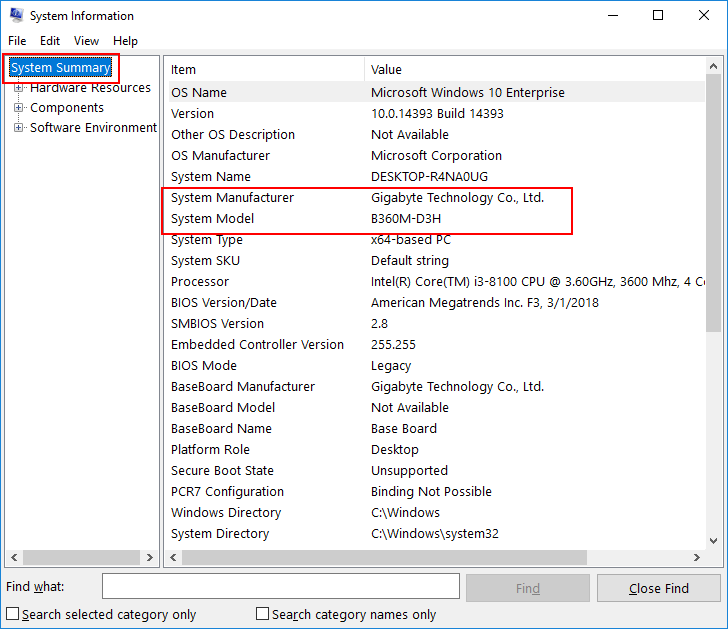
The first step is to identify what motherboard you have. You can do this by checking your computer's documentation or by using system information software such as CPU-Z or Speccy. These programs provide detailed information about your computer's components, including the motherboard model.
2. Check the motherboard's specifications
Once you've identified your motherboard, you'll need to check its specifications to see what type and amount of RAM it supports. This information can usually be found in the motherboard's manual or on the manufacturer's website. It's important to note that different motherboards support different RAM types and capacities, so it's crucial to check this information before purchasing new RAM.
Here is an example of the memory specifications for the ASUS PRIME Z390-A motherboard:
| Memory type | DDR4 |
|---|---|
| Memory speed | 2133/2400/2666/2800/3000/3200/3300/3333/3400/3466/3600/3733/3866/4000/4133/4266/4400/4500 MHz |
| Maximum memory capacity | 64 GB |
| Number of memory slots | 4 |
3. Verify the RAM you're purchasing is compatible
After you've identified your motherboard and checked its specifications, you'll need to confirm that the RAM you're purchasing is compatible. You can do this by checking the RAM's specifications and comparing them to your motherboard's supported memory type and capacity. It's important to match both the memory type and capacity to ensure proper compatibility.
Here is an example of RAM that is compatible with the ASUS PRIME Z390-A motherboard:
| Memory type | DDR4 |
|---|---|
| Memory speed | 3200 MHz |
| Maximum memory capacity | 64 GB (16 GB x 4) |
It's important to note that RAM modules come in different sizes and configurations. Some motherboards have a limit on the amount of RAM that can be installed in each memory slot, so it's worth checking the motherboard's specifications to ensure you're purchasing RAM in the correct configuration.
By following these steps, you can ensure that the RAM you're purchasing is compatible with your motherboard, avoiding any compatibility issues and ensuring optimal performance.
For more information on RAM compatibility and upgrades, visit Wikipedia.
Avoiding Common Ram Compatibility Issues:
When building a new computer or upgrading an existing one, it's important to check motherboard ram compatibility to ensure that the RAM you are purchasing will work properly with your motherboard. In this article, we'll discuss some common issues that can arise when choosing RAM for your motherboard and how to avoid them.
1. Check Your Motherboard's Specifications:
The first step in checking motherboard ram compatibility is to consult your motherboard's specifications. This information can usually be found on the manufacturer's website or in the user manual. It will typically include the type of RAM that is compatible with your motherboard, the maximum amount of RAM that can be installed, and the maximum speed at which the RAM can operate.
It's important to remember that different motherboards may have different RAM requirements, so it's essential to check your specific model's specifications. Installing RAM that is not compatible with your motherboard can lead to instability, crashes, and other issues.
Here is an example table of specifications for a motherboard:
| Motherboard Compatibility | Type of RAM | Maximum RAM Capacity | Maximum RAM Speed |
|---|---|---|---|
| ASUS Prime Z370-A | DDR4 | 64GB | 4000MHz |
2. Ensure the RAM Matches the Motherboard's Socket:
Another factor to consider when checking motherboard ram compatibility is the RAM's physical size and shape. Different motherboard sockets require different types of RAM modules, so it's crucial to ensure that the RAM you choose matches the motherboard's socket.
Most modern motherboards use DDR4 RAM, which typically uses a 288-pin module. However, some older motherboards may use DDR3 or DDR2 RAM, which have different pin configurations.
Here is an example table of RAM sockets and their corresponding types:
| Ram Socket | RAM Type | Number of Pins |
|---|---|---|
| DDR4 | DDR4 | 288 |
| DDR3 | DDR3 | 240 |
| DDR2 | DDR2 | 240 |
3. Check the Frequency and Timing of the RAM:
RAM operates at a specific frequency, which is measured in MHz. When selecting RAM, it's essential to choose a frequency that matches the maximum speed supported by your motherboard. Choosing a RAM with a higher frequency than supported may cause it to run slower than it should, while choosing one with a lower frequency may lead to instability and crashes.
You should also consider the timing specifications of the RAM, which include the CAS latency and the timings for each clock cycle. The lower the timing values, the better the RAM's performance will be.
Here is an example table of RAM frequency and timings specifications:
| RAM Specification | Description |
|---|---|
| CAS Latency | The number of clock cycles required for the RAM to respond to a command |
| Timing | The time it takes for each clock cycle |
| Frequency | The maximum speed that the RAM can operate |
4. Compatibility with Existing RAM:
If you are upgrading your computer and adding RAM to existing modules, it's essential to check compatibility between the old and new RAM. Mismatched RAM can cause stability issues and may prevent your computer from starting.
If you plan on adding new RAM to your existing memory, ensure that the two modules have the same frequency, timing, and capacity. You should also try to match the brand and model if possible. Mixing and matching different brands or models of RAM may lead to compatibility issues.
Here is an example table of compatible and incompatible RAM modules:
| RAM Module | Description | Compatibility |
|---|---|---|
| Kingston HyperX 8GB DDR4 3200MHz CL16 | DDR4 RAM module with 8GB capacity at 3200MHz frequency and CL16 timing | Compatible with others of the same brand, model, and specifications |
| G.Skill Ripjaws V 8GB DDR4 3600MHz CL18 | DDR4 RAM module with 8GB capacity at 3600MHz frequency and CL18 timing | Incompatible with Kingston HyperX 8GB DDR4 3200MHz CL16 |
In conclusion, checking motherboard ram compatibility is crucial when building or upgrading a computer. By following the tips discussed in this article, you can avoid common RAM compatibility issues and ensure that your computer runs smoothly. Always refer to your motherboard's specifications and choose RAM that is compatible with your motherboard's socket, frequency, timing, and capacity.
Upgrading Your Motherboard's RAM: Tips and Tricks
Check Motherboard RAM Compatibility
If you’re planning on upgrading your motherboard’s RAM, it’s crucial to check which type of RAM is compatible. First, identify the manufacturer and model of your motherboard. You can usually find this information in the documentation that accompanied the motherboard, but if you don’t have this, you can simply check the motherboard itself. The manufacturer and model information is typically printed in large letters on the PCB (printed circuit board).
Once you’ve identified your motherboard, you need to determine which types of RAM it supports. You can usually find this information on the manufacturer’s website or in the documentation provided with the motherboard. Some motherboards only support specific types of RAM, such as DDR3 or DDR4, while others may be compatible with multiple types. Additionally, it’s important to check the maximum amount of RAM your motherboard supports. Some older motherboards may have limited support for RAM above a certain amount.
It’s also important to note the frequency of RAM that your motherboard supports. MHz (megahertz) is used to measure RAM frequency. Different types of RAM have varying speeds, which can affect performance. Always make sure to choose RAM modules that are capable of running at the maximum speed supported by your motherboard.
Another important consideration is the number of slots on your motherboard. Different motherboards have different numbers of RAM slots, and some may be occupied by existing RAM modules. Make sure to check your motherboard manual or manufacturer’s website to ensure that you have enough slots to accommodate additional RAM modules.
The table below outlines the different types of RAM, their maximum supported frequencies, and their corresponding socket types. This will help you identify which type of RAM is compatible with your motherboard.
| Type of RAM | Maximum Supported Frequency | Socket Type |
|---|---|---|
| DDR2 | 800 MHz | 240-pin DIMM |
| DDR3 | 2133 MHz | 240-pin DIMM |
| DDR4 | 3200 MHz | 288-pin DIMM |
It’s crucial to check motherboard RAM compatibility before upgrading to ensure that you purchase the correct type of RAM and avoid any compatibility issues. By taking the time to research and select the appropriate RAM modules, you can help to ensure that your system runs smoothly and efficiently.
Check Motherboard RAM Compatibility: Dealing with BIOS Configuration Settings
One of the critical things to check when building a computer is whether your RAM is compatible with your motherboard. RAM needs to be compatible with the motherboard to ensure maximum performance. If your RAM is not correctly compatible, it may cause stability issues such as crashes and system freezes. This article will explain how to check motherboard RAM compatibility.
Checking BIOS Settings
Before you can check the compatibility, you must make a few changes in the BIOS configuration settings. Below are the steps:
| Steps | Descriptions |
|---|---|
| Step 1 | Turn on your computer and press the "Del" or "F2" keys to enter the BIOS. |
| Step 2 | Navigate to the ‘Memory Setting’ or ‘DRAM Configuration’ tab. |
| Step 3 | Here you can check your RAM configuration and the timings. |
| Step 4 | If you want to check the RAM compatibility, go to the ‘System Information’ tab and take note of your motherboard’s model number. |
| Step 5 | Then, search for your motherboard's specification online and find its compatibility list. |
Once you’ve found the compatibility list, you can verify that your RAM module is compatible with your motherboard. The list will provide the type and speed of RAM that the motherboard supports.
RAM Compatibility Lists
RAM manufacturers often provide a list of motherboards that their RAM is compatible with. You can go to the manufacturer's website or download the list from their product page. Here are some examples of RAM manufacturers with compatibility lists:
It's important to note that just because a RAM module is not on the motherboard's compatibility list doesn't mean that it won't work. It's still possible to use RAM that is not on the list, but you may not achieve optimal performance.
BIOS Updates for RAM Compatibility
If your RAM is not compatible with your motherboard, you may be able to update the BIOS to add support for it. Most motherboard manufacturers release BIOS updates regularly, and these updates often include support for new RAM modules.
It's important to note that BIOS updates carry a risk, and if something goes wrong during the update process, your motherboard may become unstable. Therefore, it's recommended that you only install updates using the manufacturer's instructions.
Conclusion
Ensuring RAM compatibility with the motherboard is essential for optimal performance and stability. By checking the BIOS settings and compatibility lists, you can verify whether your RAM is compatible with your motherboard. Remember to update the BIOS if needed and follow the manufacturer's instructions.
To ensure that your RAM is compatible with your motherboard, it's important to check the motherboard RAM compatibility. For a comprehensive guide on this topic, check out our pillar article.
Troubleshooting RAM Compatibility Problems
If you have recently upgraded your motherboard or RAM, you may encounter issues with RAM compatibility. This can be frustrating, but with a little knowledge, you can troubleshoot and resolve these issues. Here are seven tips to help you check motherboard RAM compatibility:
1. Check the motherboard specification manual
One of the best ways to ensure RAM compatibility with a motherboard is to check the motherboard specification manual. The manual will provide information about the type of RAM that the motherboard is compatible with. This information will include the RAM type, size, speed, and capacity. If the RAM you have is not compatible with the motherboard, it may lead to compatibility problems.
2. Look for RAM incompatibility symptoms
If you are experiencing problems with your RAM after upgrading, it could be a sign of RAM incompatibility. Symptoms of RAM incompatibility may include freezing or crashes of your system, blue screens of death (BSOD), or other types of system errors. These are indications that your RAM and motherboard are not compatible.
3. Check the RAM specifications
Check the specifications of the RAM you have installed on your motherboard. This information is located on the RAM card and includes details such as RAM type, size, speed, and capacity. Compare the RAM specifications with the motherboard specifications to determine if the RAM will work with the motherboard. If the RAM is incompatible, you will need to exchange it for compatible RAM.
4. Check RAM channel and slot
It is crucial to check the RAM channel and slot to ensure compatibility. By default, motherboards support dual-channel RAM, which means that RAM cards must be installed together in pairs to work correctly. If RAM is not installed correctly in the slot, it may cause compatibility issues with the motherboard. Check the slot guidelines to ensure that the RAM is inserted in the correct slot.
5. Check RAM voltage
RAM voltage is another key aspect to check when troubleshooting RAM compatibility issues. It is essential to check that the voltage of the RAM matches the motherboard voltage. Installing RAM with a higher voltage can damage the motherboard, leading to compatibility problems. To avoid this issue, check the RAM voltage and ensure it matches the motherboard voltage before installation.
6. Check the BIOS settings
The motherboard's BIOS settings also play a critical role in RAM compatibility. You can check the BIOS settings and ensure they are correctly configured. Access the BIOS utility by restarting your system and pressing the BIOS setup key (F2, F10, or Delete). Look for options related to RAM settings, such as memory frequency, timing, and voltage. Ensure that they are set correctly according to the RAM specifications.
7. Update BIOS firmware
If you have checked all the RAM compatibility aspects and still experience issues, updating the BIOS firmware could help. Manufacturers commonly release new BIOS versions that often address RAM compatibility issues. Check the motherboard manufacturer's website for the latest BIOS firmware update and instructions on how to install it. Updating the BIOS firmware can resolve RAM compatibility-related issues.
In conclusion, checking RAM compatibility with your motherboard can help avoid any compatibility issues. Follow these troubleshooting steps to ensure a smooth RAM and motherboard upgrade, fix any RAM compatibility issues and enjoy a hassle-free computing experience.
Reference: DDR4 SDRAM - Wikipedia
FAQ
Below are some frequently asked questions related to checking motherboard RAM compatibility:
1. How do I know if my RAM is compatible with my motherboard?
You can check the motherboard’s manual or visit the manufacturer’s website to find out the compatible RAM modules. Generally, you need to match the RAM’s type, speed, and capacity with the motherboard’s specifications.
2. Is it necessary to match RAM speed with the motherboard?
Yes, it is necessary to match the RAM speed with the motherboard. Otherwise, the RAM will run at a lower speed, which can cause system instability.
3. Can I use DDR4 RAM on a DDR3 motherboard?
No, you cannot use DDR4 RAM on a DDR3 motherboard because the two are not compatible. It can damage your motherboard or processor if you try to do so.
4. What happens if I install incompatible RAM on my motherboard?
If you install incompatible RAM on the motherboard, it may not boot up, or the system may become unstable and crash frequently. It can also cause permanent damage to your motherboard and CPU.
5. Can I add more RAM to my existing setup?
Yes, you can add more RAM to your existing setup if your motherboard has empty RAM slots. Check your motherboard specifications and buy the compatible RAM module accordingly.
6. What is the maximum RAM capacity my motherboard can support?
You can check your motherboard’s manual or visit the manufacturer’s website to find out the maximum RAM your motherboard can support. It can vary depending on the motherboard’s model and make.
7. How do I install RAM on my motherboard?
You need to power off your system and unplug it from the power source. Then, locate the RAM slots on the motherboard and insert the RAM modules correctly. Refer to your motherboard’s manual for detailed instructions.
8. Can I mix RAM sizes and speeds on my motherboard?
You can mix RAM sizes, but it is not recommended to mix different speeds. The system will only work with the lowest speed of RAM installed.
9. Can I use ECC RAM on a non-ECC motherboard?
No, you cannot use Error-Correcting Code (ECC) RAM on a non-ECC motherboard. It is not compatible, and your system may not boot up or become unstable.
10. How often should I check my motherboard’s RAM compatibility?
If you are not upgrading your system, you may not need to check your motherboard’s RAM compatibility frequently. However, if you are upgrading or building a new system, make sure to check the compatibility before purchasing the RAM module.
Conclusions
Checking motherboard RAM compatibility is crucial to avoid system instability, crashes, and permanent damage to your hardware. Before purchasing a RAM module, you must check your motherboard's specifications to find out the compatible RAM type, speed, and capacity. You can refer to the motherboard manual or the manufacturer's website to check for compatibility. It is important to install the RAM modules correctly by referring to the manual to prevent any damage to the slots. Moreover, you should not compromise on RAM speed or mix different RAM speeds, as it can affect system performance. Always make sure to check for compatibility whenever you are upgrading or building a new system. With proper precautions and knowledge, you can ensure a stable and efficient system.


Post a Comment
Post a Comment